

Agents
Let an AI agent such as Claude or ChatGPT read and manage your Alur workspace
Alur has an MCP server. MCP is the standard way AI agents such as Claude and ChatGPT talk to other apps. Connect an agent and you can ask it, in plain language, to check why a run failed, list tomorrow's bookings, add a row to a table, or run a workflow.
The agent acts as you. It sees only your own data, and you decide whether it can only read or can also change things. There are two ways to connect, depending on the app: sign in (for connector apps such as Claude and ChatGPT) or an API key (for Claude Code, Cursor and scripts).
Connect an agent by signing in
Use this for apps that offer custom connectors, such as Claude and ChatGPT.
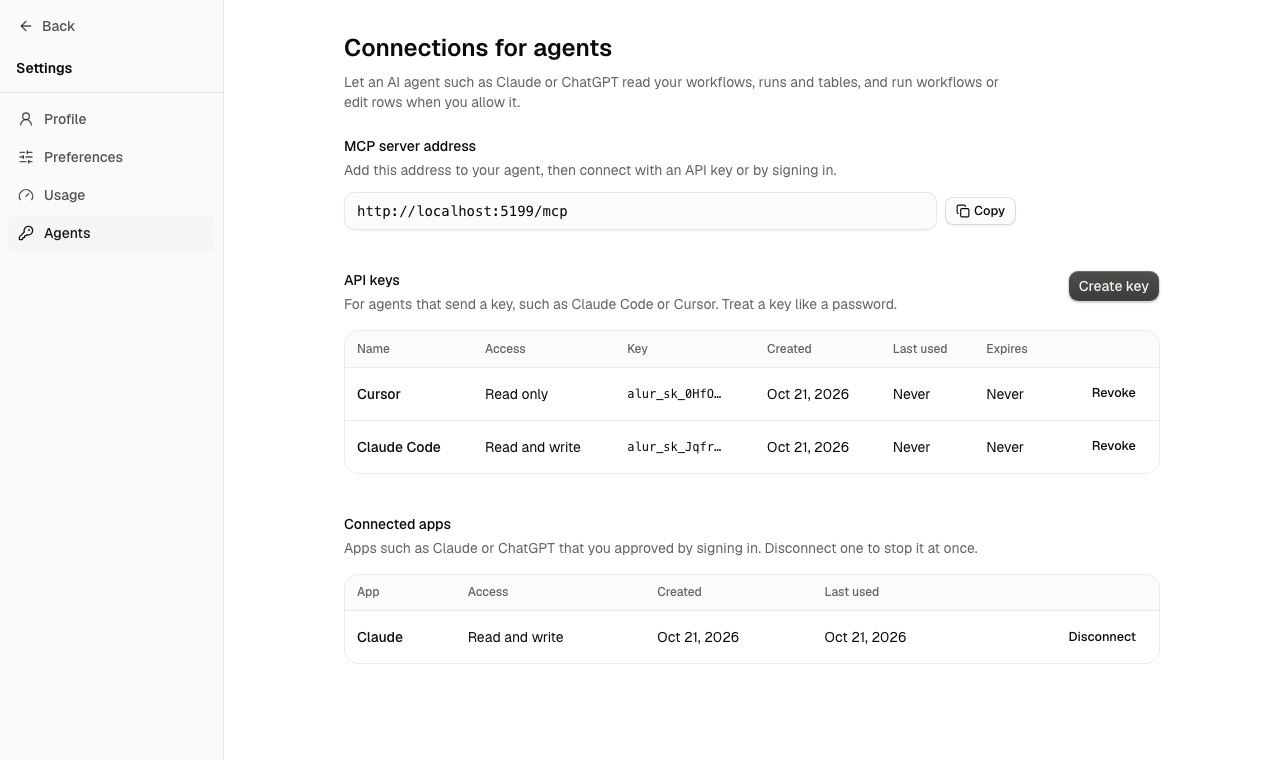
- Open Settings → Agents and copy the MCP server address at the top (it
ends in
/mcp). - In the agent app, add a custom connector (a remote MCP server) and paste the address. Menu names differ between apps and change over time, so check the app's own help for where connectors live.
- The app opens Alur. Sign in if you aren't already.
- Alur shows who is asking and what it wants. Choose Allow or Deny.
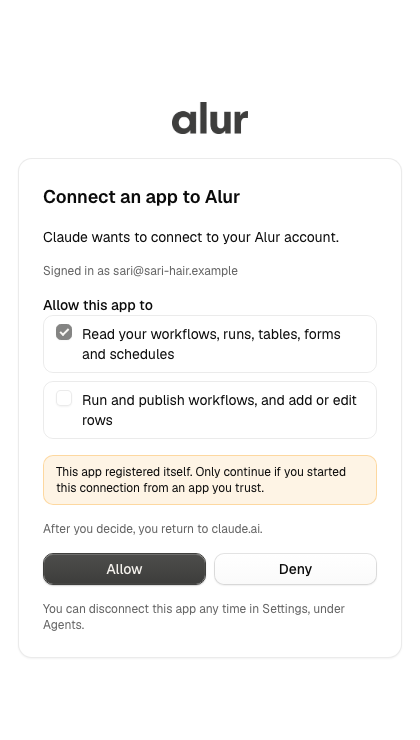
Read access is always included. Run and publish workflows, and add or edit rows is off until you tick it. The app registers itself with Alur, so the approval screen can't prove who it is: only allow a connection you started yourself.
Connect an agent with an API key
Use this for tools that let you set a header.
- Open Settings → Agents. Under API keys, choose Create key.
- Name the key and pick Read only or Read and write. An expiry date is optional.
- Copy the key now. It starts with
alur_sk_and is shown only once. - Give the agent the server address and send the key as
Authorization: Bearer <key>. In Claude Code:
claude mcp add --transport http alur https://YOUR-ADDRESS/mcp \
  --header "Authorization: Bearer alur_sk_..."
Disconnect an app or revoke a key
- Open Settings → Agents.
- For an app, find it under Connected apps and click Disconnect. For a key, click Revoke.
Both stop access at once. A disconnected app has to ask for your approval again to reconnect.
What an agent can do
Read only access can use these tools:
| Tool | What it returns |
|---|---|
list_workflows, get_workflow |
Your workflows, and one workflow's draft and published graphs |
list_runs, get_run |
Recent runs, and one run with every step's input, output and error |
list_tables, list_rows |
Your tables, and a page of rows (search with q) |
list_forms |
Forms and their setup |
list_schedulings |
Bookings across your scheduling links |
get_dashboard, get_usage |
The dashboard summary and your 30-day usage |
Read and write access adds:
| Tool | What it does |
|---|---|
run_workflow |
Starts a run of the published version with the input you give. Send the same idempotency key to retry safely: a repeat starts no second run |
publish_workflow |
Publishes the saved draft as a new live version, and resumes the workflow if it was paused |
unpublish_workflow |
Pauses a published workflow. Its live triggers stop; runs already started keep going |
create_row, update_row |
Adds a row, or changes cells of one row, checked against the column types |
Cells are keyed by column id; list_rows shows the ids.
An agent cannot edit a workflow's graph, delete anything, see or change Connections, or decide an approval. Those stay with you in the app.
Limits
- You can have up to 10 active keys.
- Each key or connected app can make 120 calls a minute, and 30 of those can be write calls. Over the limit, calls fail with 429 until the minute passes.
run_workflowfollows the same limits as a webhook: up to 20 runs a minute and 5 running at once per workflow.- A connected app's access lasts an hour and the app renews it by itself with a token that is valid for 30 days. Disconnect an app to end its access at once.
- With a key or a connected app, the same read-only data is also available over
the REST API (
GET /api/v1/...). Changes go through the MCP server.