

Connections
Connect a business API by its OpenAPI definition, or a service like Zernio, Resend, Mayar or an AI provider
Connections in the sidebar lists the APIs and services you've connected. You connect one once, then pick it in any step that needs it. For an API with an OpenAPI (3.x) definition, Alur builds the request from that definition, so only the operation's own parameters, body, and credentials need filling in, through an API Call step.
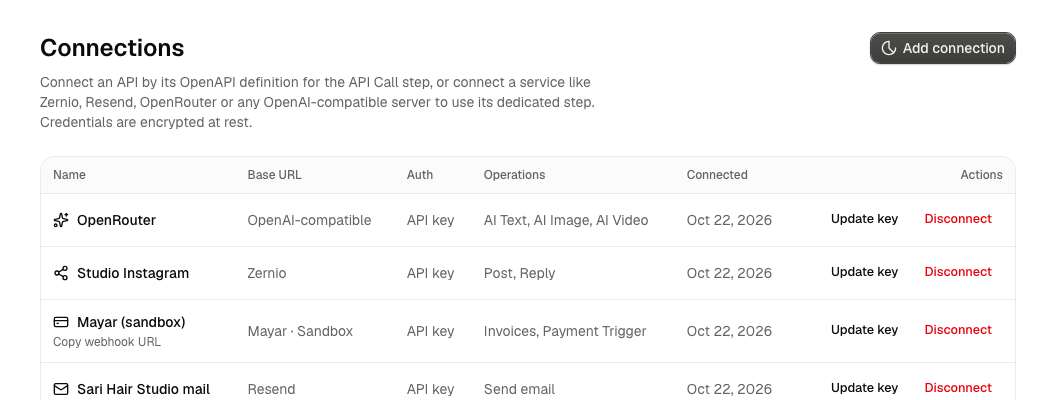
Connections come in several kinds: OpenAPI connections for API Call steps, Zernio connections for the Zernio step, Resend connections for the Send Email step, OpenAI-compatible connections (OpenAI, OpenRouter and similar) for the AI Text step, and Payment connections (Mayar) for the Mayar step and Payment Trigger. Each kind of connection is offered only to its own kind of step.
Add an OpenAPI connection
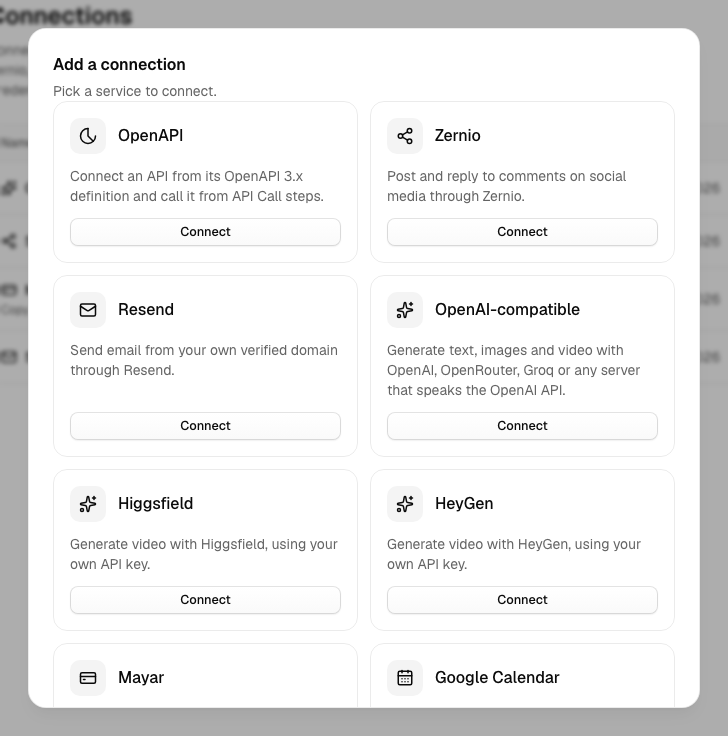
- Open Connections and click Add connection. Pick the kind by clicking Connect on its card (Back returns to the cards).
- Spec: give Alur the OpenAPI (3.x) definition, either From URL (Alur fetches it — up to 10 MB) or Paste definition (raw JSON or YAML).
- Preview: Alur parses the spec and shows the API's title, operation count and detected auth method, before asking for anything sensitive. Override the base URL here if the spec doesn't declare one Alur can reach, or declares the wrong one.
- Credentials: enter a name for the connection (defaults to the spec's title) and, if the API needs one, the credential value itself.
Add a Zernio connection
- Click Connect on the Zernio card in Add connection.
- Enter a name and your Zernio API key.
- Save. Alur checks the key with Zernio first.
See Zernio.
Add a Resend connection
- Click Connect on the Resend card in Add connection.
- Enter a name and your Resend API key. A key with Sending access is enough.
- Save. Alur checks the key with Resend first.
See Resend.
Add a Payment connection (Mayar)
- Click Connect on the Mayar card.
- Enter a name, the environment (Production or Sandbox), your Mayar API key and, optionally, Mayar's webhook token.
- Save. Alur checks the key with Mayar first.
- Click Copy webhook URL on the connection and paste it in Mayar's dashboard.
See Mayar payments.
Add an OpenAI-compatible connection
- Click Connect on the OpenAI-compatible card.
- Enter a name, the server's base URL, a default model, optional default image and
video models (for AI Image and
AI Video) and your API key. Use
https://openrouter.ai/api/v1to connect OpenRouter. - Save. Alur checks the key first.
See AI Text.
Add a Higgsfield connection
- Click Connect on the Higgsfield card.
- Enter a name, your API key ID, your API key secret, and optionally a
default video model (an endpoint path such as
wan/v2.7/text-to-video). - Save.
Alur can't check the key with Higgsfield when you save, so a wrong key shows up the first time an AI Video step runs. See AI Video.
Add a HeyGen connection
- Click Connect on the HeyGen card.
- Enter a name and your HeyGen API key (HeyGen account, Settings → API).
- Save.
Alur can't check the key with HeyGen when you save, so a wrong key shows up the first time an AI Video step runs. See AI Video.
Connect Google Calendar
- Click Connect Google Calendar in Add connection.
- Approve on Google's page.
It isn't an API key and no step uses it. It is for scheduling links: hiding your busy times, adding bookings to an Alur calendar and Google Meet links. One per account. Reconnect starts the approval again (shown as Reconnect needed when Google stopped accepting the connection).
Update a key or refresh a connection
- Find the connection on the Connections page.
- Choose Update key to replace the key, or Refresh (OpenAPI connections) to re-fetch and re-parse the spec.
Update key replaces the key, or Mayar's webhook token, without breaking steps that use the connection. For Mayar it keeps the webhook URL. For Higgsfield it replaces both parts.
Refresh updates the stored base URL, auth scheme and operation list. An operation removed from the API disappears from the API Call step's picker; any step still pointed at it fails at run time rather than at refresh time.
Disconnect a connection
- Find the connection on the Connections page.
- Choose Disconnect.
This removes the connection. Any step still referencing it fails at run time — disconnecting doesn't touch the workflows that used it.
Supported login methods
Detected automatically from an API's definition:
| Method | Supported |
|---|---|
| None | Yes |
| API key (header, query, or cookie) | Yes |
| Bearer token | Yes |
| Username and password (HTTP Basic) | Yes |
| OAuth2 | No |
| OpenID Connect | No |
An API whose only login method is OAuth2 or OpenID Connect can't be connected yet — you'll see this at the preview step, before anything's saved. The credential value itself is encrypted at rest. Keys for other connection kinds are stored encrypted and never shown again.