
Runs
A per-step record of every workflow execution
Every time a workflow runs, Alur records a run: the overall status, plus each step's status and input/output. From here you can see exactly what happened, and if it failed, which step and why.
Run a workflow
Start a run in one of two ways:
- Manually, from the dashboard, or with Test run on the canvas.
- From a webhook, schedule, form, booking or payment, once that trigger is configured and the workflow is published — see Triggers.
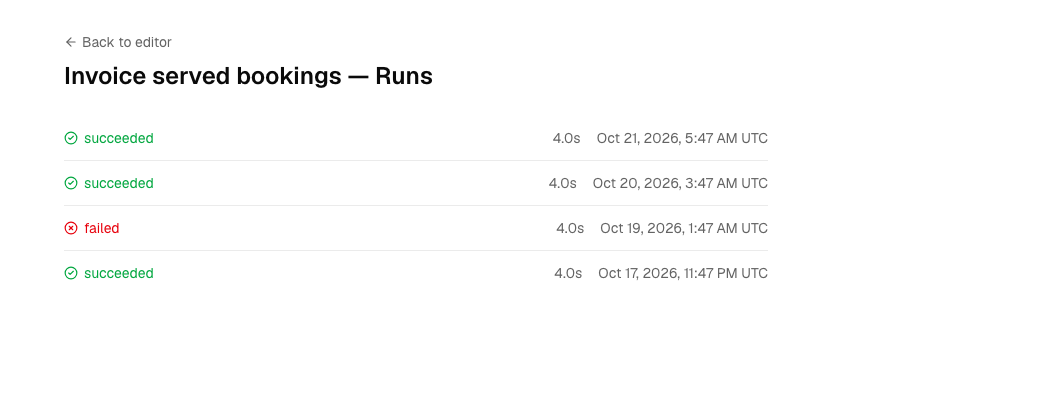
Non-test runs always execute the published version, not the draft. A test run executes your current draft. A paused workflow starts no non-test runs until you resume it.
Inspect a run
- Open the workflow. The Run panel at the bottom of the canvas opens on the latest run. Or open the Recent runs list on the dashboard (Home in the sidebar).
- Click a run to see each step's status and input/output, streamed live while the run is in progress.
- To see every run of one workflow, click View all runs in the panel.
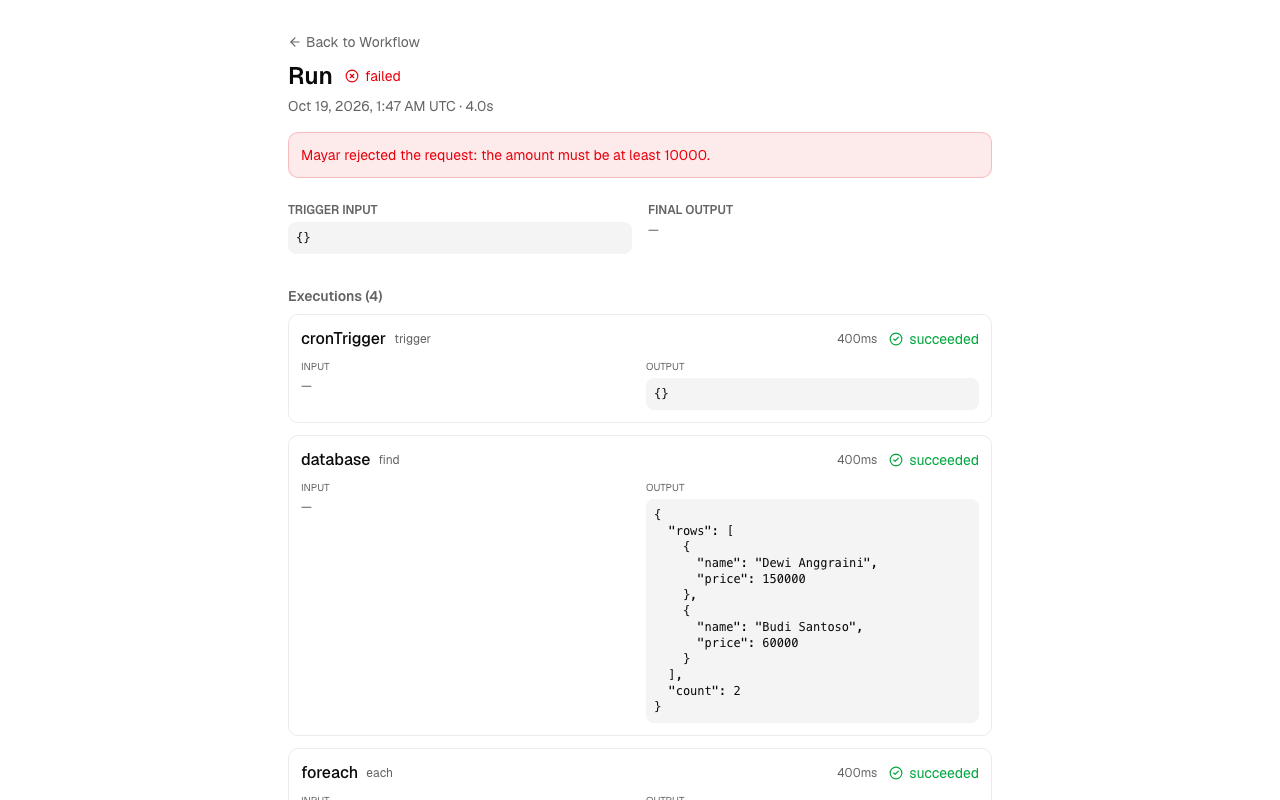
Every trigger returns a run ID. Recent runs on the dashboard shows your 10 latest runs across every workflow (See all opens the full list) with their status, start time and duration. View all runs in the panel is separate: it opens that workflow's own run history.
Test runs
Test runs are recorded like any other run but flagged as tests, and don't count toward your usage numbers.
Email when a run finishes
Alur emails you when a published workflow finishes its first run, and whenever its result changes — a run fails after succeeding, or succeeds after failing. Repeated successes or repeated failures send nothing, and test runs from the editor never send email. The email goes to your account address, in your chosen language, with a link to the run.