

Scheduling
Share links so people can book a time with you, and manage every booking in one place
A link is a public web page where anyone can pick a free time with you, for example 30-minute intro call. Bookers don't need an Alur account. You can have up to 50 links, each with its own address, hours and length.
Every booking from every link shows up in one scheduling table. Bookers get a confirmation email and a private link to cancel or reschedule. You can also give each booking a video call: an Alur video call, or a Google Meet link once you connect Google Calendar, which also hides your busy times.
Create a link
- Open Scheduling in the sidebar.
- Click Manage links, then New link.
- Type a name and click Create link.
Alur opens the link's editor, and the link is live straight away with the default settings. Change anything you like in the editor, then click Save changes.
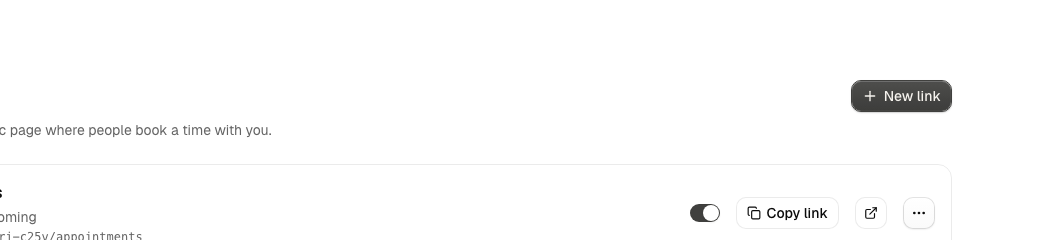
Its public address is under your business address:
/@your-handle/ followed by a link address made from the name, for example
/@klinik-sehat/30-minute-intro-call.
Edit a link
- Open Scheduling, then Manage links.
- Click the link's title, or open its ⋯ menu and choose Edit.
- Change the details on the left (what the booker sees) or the Schedule on the right (duration, time zone, notice, horizon and available hours).
- Click Save changes.
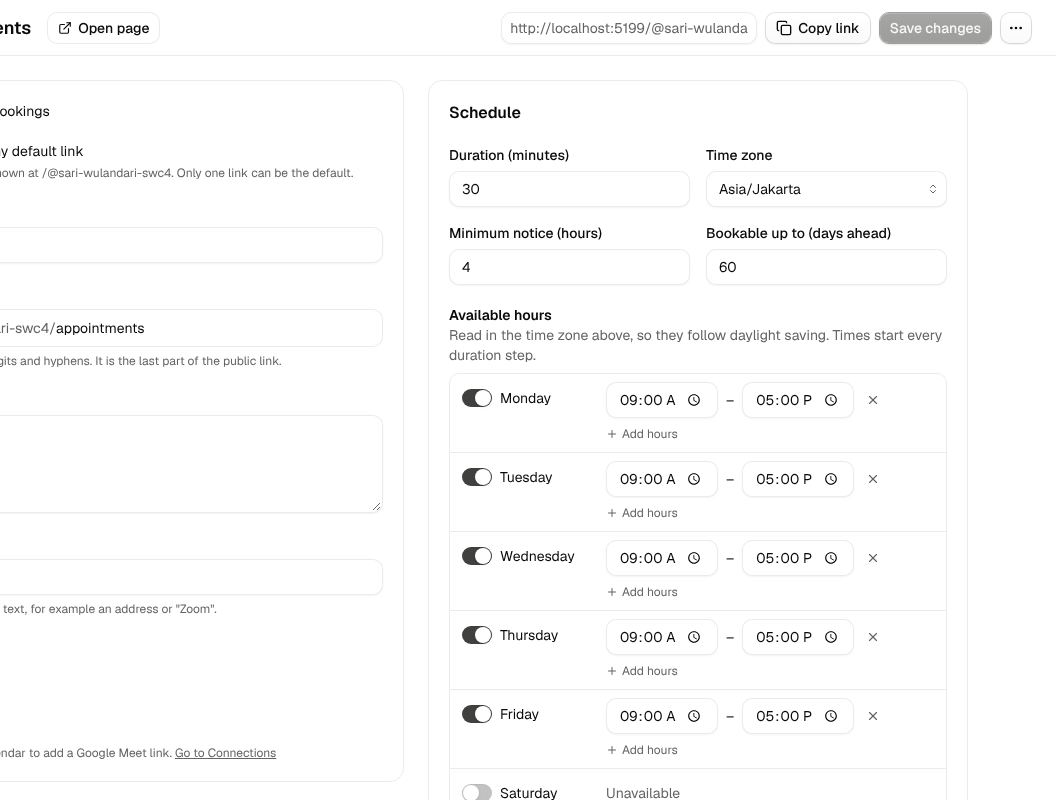
Accepting bookings is the exception: it takes effect immediately, without Save changes. See Link settings for what every field means.
Make a link your default
- Open the link's editor.
- Turn on Make this my default link.
- Click Save changes.
The link now shows at your bare business address, alur.sh/@your-handle, so
people can book from the short address you share. See
Default link for the rules.
Pause or resume a link
- Open Scheduling, then Manage links.
- Use the Active switch on the link's row, or turn Accepting bookings on or off in its editor.
While a link is paused, visitors see "Not taking bookings" and nothing can be booked.
Add a booking by hand
Use this for a phone call, a walk-in, or to block time off.
- Open Scheduling.
- Click Add booking.
- Choose the link, enter a name and a start time. The email, end time and note are optional.
- Click Add booking in the dialog.
See Your bookings for what a manual booking does and doesn't do.
Cancel or reopen a booking
- Open Scheduling and find the booking in the Upcoming tab.
- Click Cancel booking.
The booking moves to the Cancelled tab and its time is free again. To undo it, open the Cancelled tab and click Reopen. This works only if the time is still free.
Book a time (what the booker does)
The booker opens your link and books in two moves.
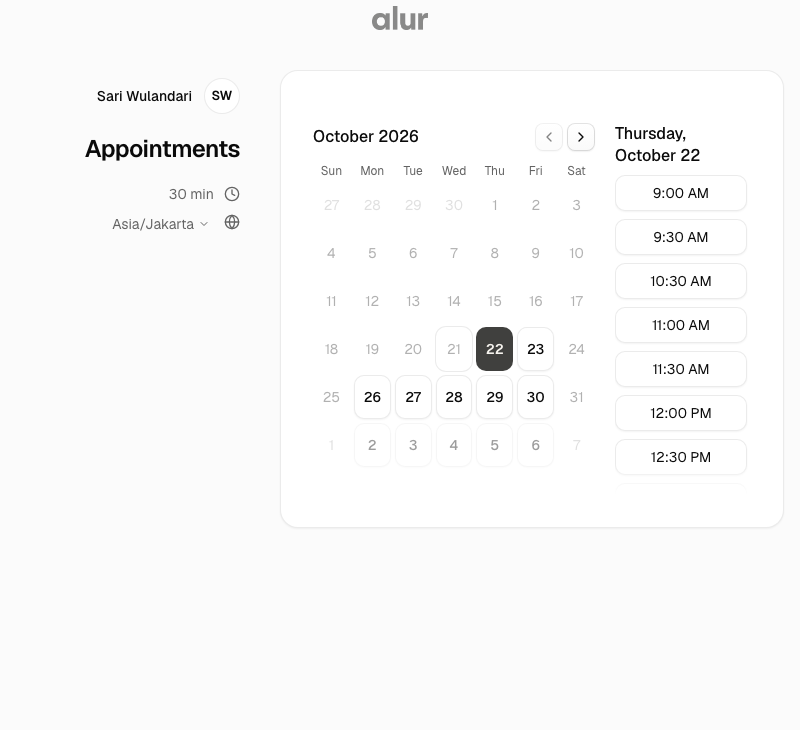
- Pick a date and time. Days with free times are shown on a month calendar, and the times for the chosen day are listed beside it.
- Enter a name, an email and an optional note, then click Book.
The booking is confirmed immediately. The confirmation shows the time in the booker's time zone and an Add to calendar link.
Cancel or reschedule as a booker
After booking, the confirmation screen shows Manage this booking, and Alur emails the same link.
- Open the manage link.
- To cancel, click Cancel booking and confirm.
- To reschedule, pick another free time and confirm.
See Manage links for the rules.
Connect Google Calendar and add Google Meet links
- Open Connections.
- Choose Add connection, then Connect Google Calendar.
- Approve the request on Google's page.
- To add a Meet link to every booking of a link, open that link's editor and, under Video call, choose Google Meet. It saves at once.
Google Meet can be chosen only once Google Calendar is connected, and every link starts at None until you choose otherwise. A link has one video call choice: picking Google Meet replaces an Alur video call. See Google Calendar details for what this changes.
Delete a link
- Open the link's editor.
- Open the ⋯ menu and choose Delete link.
Deleting is blocked while the link has upcoming confirmed bookings: cancel them first. After deleting, the public link stops working and the link's bookings are deleted with it.
Link settings
Every setting is in the link's editor.
| Setting | What it means | Default |
|---|---|---|
| Title, Description, Location | Shown to the booker. Location is plain text, such as an address or "Zoom"; Alur doesn't open it. For a call link, use Video call instead. | |
| Video call | None, Google Meet (needs Google Calendar) or Alur video call (see Video calls). Each booking gets its own link. | None |
| Link address | The last part of the public link. | Made from the name |
| Duration | 5 to 480 minutes. | 30 minutes |
| Time zone | The zone your available hours are read in. | Your browser's time zone |
| Available hours | The weekly hours people can book. | Monday to Friday, 09:00 to 17:00 |
| Minimum notice | Hides times that are too soon. | 4 hours |
| Bookable up to | Hides times too far ahead. | 60 days ahead |
| Accepting bookings | Pauses the link when off. | On |
Link address. Lowercase letters, digits and hyphens, unique among your links.
When you already have a link with that address, Alur adds -2, -3 and so on.
portal, manage, forms, book, logo and docs can't be used. Changing it
changes the public link when you save: the old one stops working and doesn't
forward, so share the new one. Changing your
handle changes every link's
address.
Duration. Times start every duration step, so a 45-minute link offers 09:00, 09:45, 10:30 and so on.
Time zone. Click the field and type any part of a name, for example "jakar" or "new york", to find it. Available hours are wall-clock times in that zone, so "09:00" stays 09:00 when daylight saving changes.
Available hours. A day can have several blocks. A day with no block is unavailable.
Changing settings only affects times that are still free. Bookings you already have are never moved or removed. An account can have up to 50 links.
Default link
A new account starts with one default link, created when you sign up:
1 Hour Meeting w/ followed by your name, at /@your-handle/1-hour-meeting
(Temu 1 Jam w/ and your name, at /@your-handle/temu-1-jam, if you signed
up in Bahasa Indonesia). It lasts 60 minutes and otherwise has the
default settings, in the time zone your network location
suggested at sign-up (Asia/Jakarta or UTC when it can't tell). Edit, rename or
pause it like any other link. Older accounts keep the links they have; their
bare address shows no page until you choose a default.
Only one link can be the default. Choosing another moves it, and the Links page marks the current one Default. The link keeps its own address too. Turn the switch off and the bare address shows no page again.
What the booker sees
The page is split in two. On the left are your picture and name, the link title, its length and location, and the time zone. The booker's own zone is preselected, and they can search the list to change it. On the right is the calendar and, after a time is chosen, the details form. Back returns to the calendar with the chosen time still selected.
The header shows your display name and profile picture, so bookers know who they are booking with. Set both in Settings → Profile: upload a PNG, JPG or WebP up to 2 MB, or remove it to go back to your initials. Without a display name the header shows neither, and your email is never shown.
Nobody sees anyone else's bookings: the page only shows which times are free. If two people pick the same time, the second is told it was just taken and sees the updated times.
To limit abuse, a page accepts a bounded number of requests per minute and per day, and one email address can hold at most 3 upcoming bookings on a page.
Your bookings
The Scheduling table lists every booking of every link in three tabs: Upcoming (confirmed, not over yet, soonest first), Past and Cancelled (newest first).
- Filter by link and by a range of days, or search a name or email address. The count shows how many match.
- Switch between List and Calendar. The calendar shows one month, and cancelled bookings are crossed out.
- Export CSV downloads the bookings that match the current tab and filters.
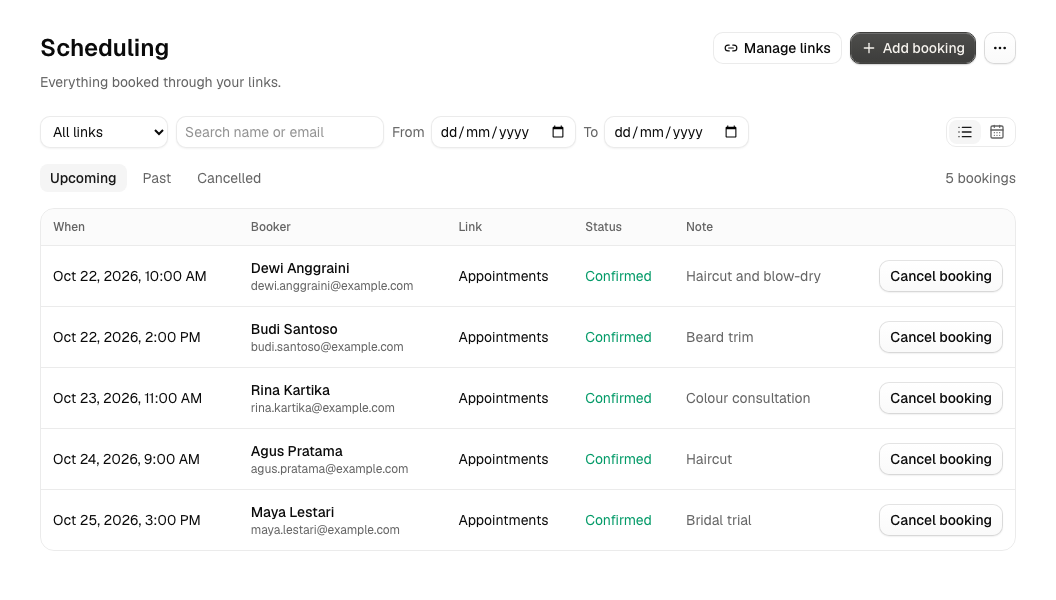
Cancelling. Alur emails the booker that you cancelled, with a link to book a new time. Bookings you added by hand without an email send nothing.
Editing. Click a booking's note to edit it. The booker's name, email and time can't be changed; if the time changes, the booker reschedules from their manage link.
Manual bookings. They need no email and can be at any time, but can't overlap another booking. When you leave out the end, the link's length is used. A manual booking has no manage link and doesn't start workflows.
Times are shown in your browser's time zone and stored as exact moments. One calendar covers all your links: you can't be booked twice at the same moment, even through different links.
Manage links
The booker's manage link (/@your-handle/m/...; the older /manage/ spelling
still works) is private: whoever has it can see that one booking and change it,
so it is not shown anywhere else. If you change your handle later, manage links
already sent keep working and forward to the new address.
The manage page shows the title, the booker's time (in a time zone they can switch) and the location.
- Cancelling turns the booking into Cancelled and frees its time.
- Rescheduling uses the same list of free times as the booking page, and the booker's current time counts as free. The booking moves in one step. If someone took that time meanwhile, the booker is told and sees fresh times.
Both work until the booking starts. After that, or once it is cancelled, the page only says so. If you turn off Accepting bookings, bookers can still cancel but not reschedule. Bookings made by hand have no manage link; cancel those from the scheduling table.
Email bookers and automate with the Scheduling trigger
When someone books, Alur emails them a confirmation from its own address. It
holds the title, your name, the time (in the time zone they chose on the page) and
the location, with their manage link and a booking.ics calendar file attached
(the same one Add to calendar gives). The email follows the booker's browser
language (English or Bahasa Indonesia). If the email can't be sent, the booking
still goes through. Bookings you add by hand get no confirmation email.
Alur also emails the booker when a booking is cancelled (by them or by you) or when they reschedule it. Reminders are not emailed by Alur.
If you also send a confirmation from a workflow, for example Email booker: booking confirmed from the Service business template, the booker gets two. Turn that workflow off or change what it sends.
For anything more, a workflow can
start when a booking is created, cancelled or rescheduled, and do
whatever you like: send an email with
Resend, add a row to another table, and so
on. The values ({{ trigger.email }}, {{ trigger.name }}, {{ trigger.start }},
{{ trigger.manageUrl }} and more) are listed under Triggers.
A Cancelled event fires when the booker cancels or when you cancel a booking on the scheduling table. A failure to start a workflow never stops a booking, cancellation or reschedule from going through.
To remind people the day before, use a workflow with a Cron trigger and a Scheduling step that reads tomorrow's bookings.
Google Calendar details
Once connected, your links use your calendar like this:
- Busy times are hidden. Times when Google Calendar shows you as busy are not offered on any of your links, and a booker can't book one even if the page was already open. Times Google shows as free don't block.
- Every booking is added to Google Calendar, on a separate calendar called Alur that Alur creates in your account. The booker is added as a guest, and Google doesn't send its own invitation (Alur's confirmation email is the only one).
- Each booking gets its own Meet link when the link has Meet on. It shows on
the confirmation screen and the booker's manage page, in the confirmation and
rescheduled emails, and in the
.icsfile. Bookings you add by hand get an event too, and a Meet link when the link has Meet on. - Cancelling removes the event. Rescheduling moves it, and the Meet link stays the same.
Alur asks Google for only four low-risk permissions: sign-in details (your email, to show which account is connected), creating and managing its own Alur calendar, and seeing when you're busy. It can't read your events' titles or details or change any other calendar of yours.
If Google can't be reached when someone books, the booking still goes through, just without a Meet link or event. If Google no longer accepts the connection (for example you removed Alur's access), the Connections page shows Reconnect needed; click Reconnect. Disconnect removes the connection: events and Meet links already made stay, and new bookings no longer touch Google.
The dashboard summary
The Dashboard opens with a Scheduling summary above your recent runs.
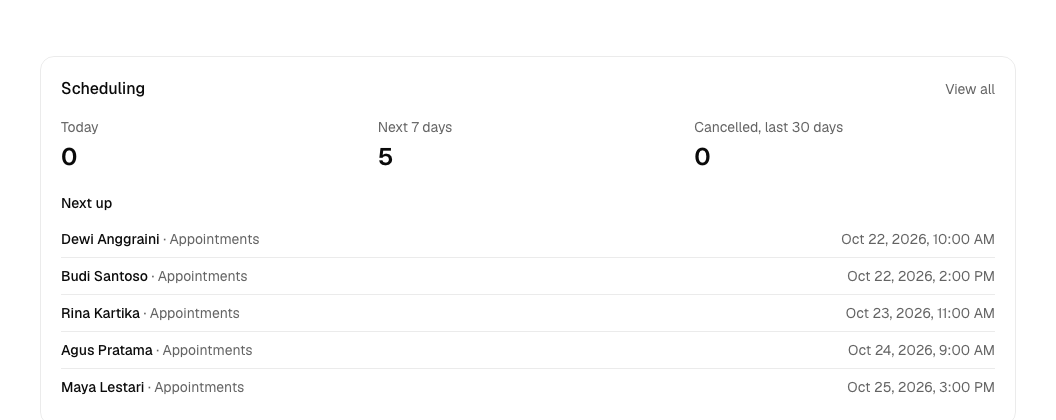
- Today: confirmed bookings that start today and haven't ended.
- Next 7 days: confirmed bookings that haven't ended and start before the end of the seventh day, today included.
- Cancelled, last 30 days: bookings that were cancelled in the last 30 days, by you or the booker.
- Next up: the next five bookings, soonest first, with the booker and the link. View all opens the scheduling table.
"Today" and "next 7 days" follow the calendar days of your browser's time zone. Until you create a link, the summary shows a shortcut to create one.