

Media
Upload and manage images and files in your private library
Media in the sidebar is your private file library. Upload images and other files, find them, preview them, and delete them when you're done.
Images can be attached to posts with the Posting step. The AI Image and AI Video steps save the pictures and videos they generate here; videos can be downloaded but not posted yet.
Upload files
- Open Media in the sidebar.
- Click Upload.
- Choose one or more files.
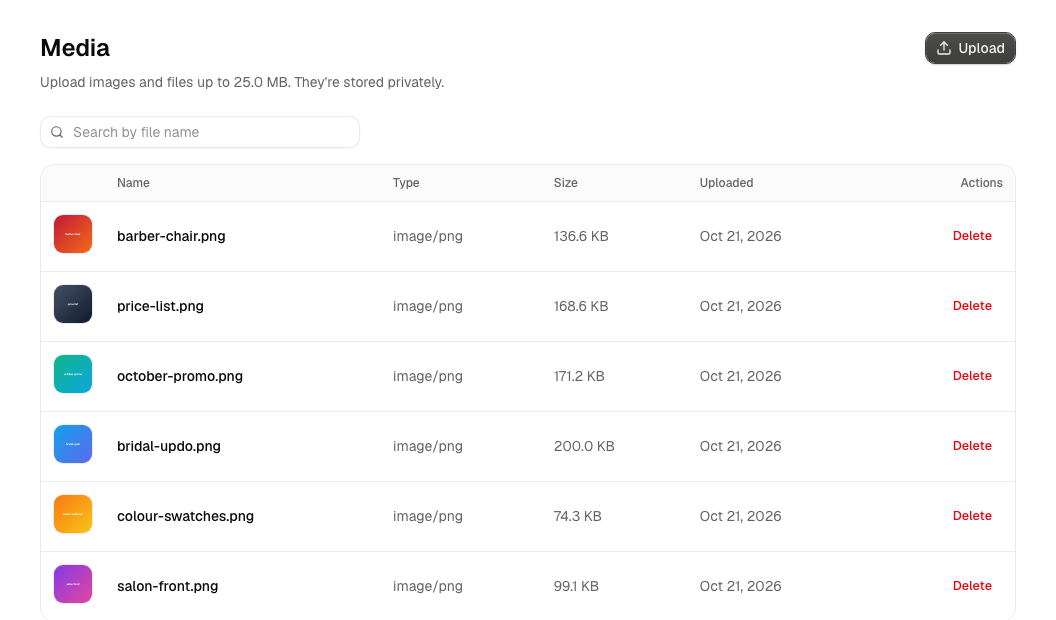
Each file shows its progress in the table and becomes a normal row when it finishes, at the top of the list (newest first).
Retry a failed upload
- Find the row that shows the failure reason.
- Click Retry to try the same file again, or Dismiss to clear it.
Find a file
- Click Search by file name.
- Start typing. The list filters as you type.
- To go back to the full list, click Clear search.
Preview or download a file
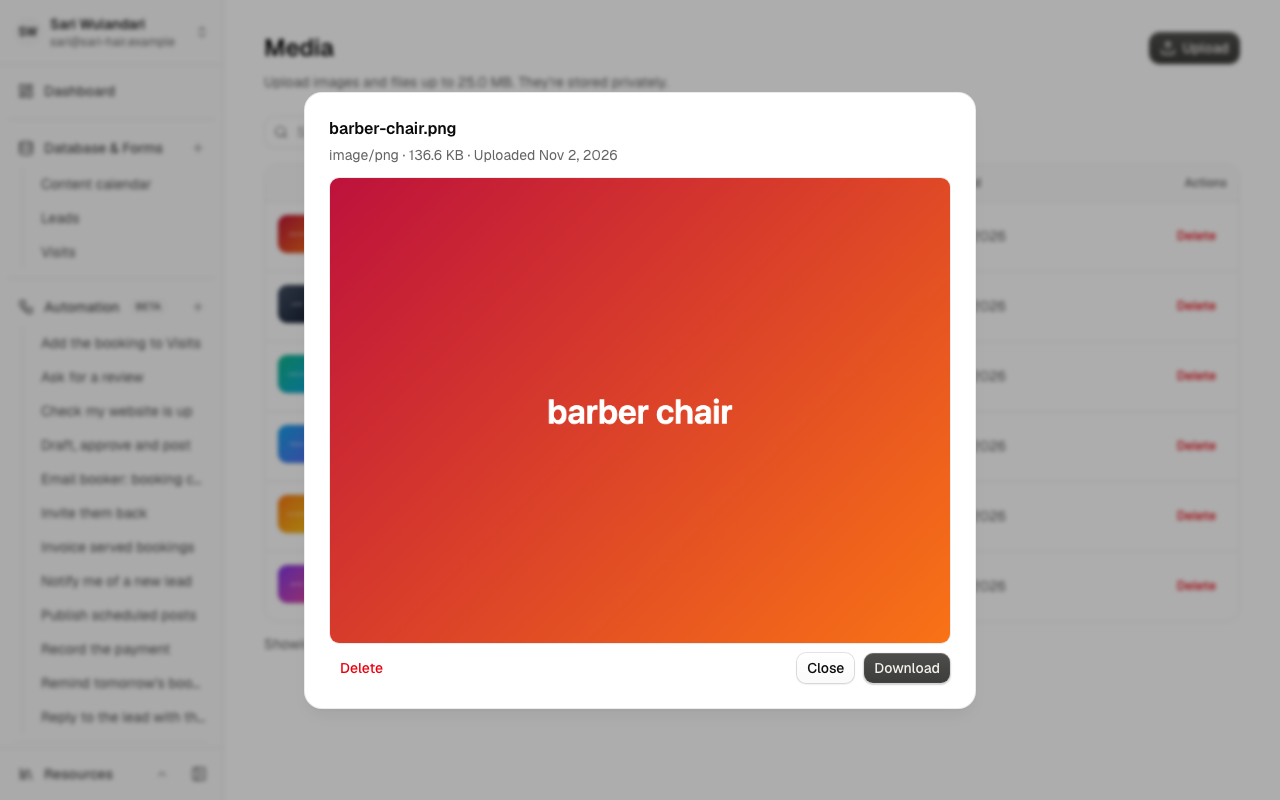
- Click a file's thumbnail or name to open its preview.
- Click Download to save the file under its original name.
- Click Close, or press Esc, to return to the list.
Delete a file
- Click Delete on the file's row, or in its preview.
- Confirm.
The file is permanently removed. There's no trash or undo.
About the library
Uploads. Files can be any type, up to 25 MB each. Alur uploads up to three at a time; the rest show Waiting… and start automatically. If an upload fails (a dropped connection, a file over the limit, an empty file), its row shows the reason, and nothing is stored.
Search. It matches any part of the name, ignoring capitals, and always starts
from the first page. If nothing matches you'll see "No files match …" with a
Clear search link. Characters like % and _ are searched as plain text.
Pages. The table shows 25 files per page, newest first. The line under it says which files you're looking at ("Showing 26–50 of 83"), with Previous and Next when there's more than one page. The page and your search are in the address, so refreshing or going Back keeps your place, and you can bookmark a search. After you delete the last file on a page, you move back a page automatically.
The table. Each row shows a thumbnail (a small preview for PNG, JPEG, GIF, WebP, AVIF, BMP and ICO images, or a file icon for everything else), the file's name, and its type, size and upload date. An empty library shows "No files yet."
Preview. It shows a large image (or an icon for other file types) with the name, type, size and upload date. If the file has been removed since the list loaded, the preview says so instead of showing a broken image.
Using files in tables and posts
A Media column in a table keeps a list of images from this library. A workflow can read it with the Database step and publish the images with the Posting step.
Privacy
Only you can see or open your files, and search only ever covers your own. They are stored privately and served through Alur after checking that you're signed in as the owner. Images show in the browser; other file types always download rather than open, so an uploaded file can't run in Alur's pages.