

Lead capture
Collect leads with a form, get an email for each one, and confirm to the lead
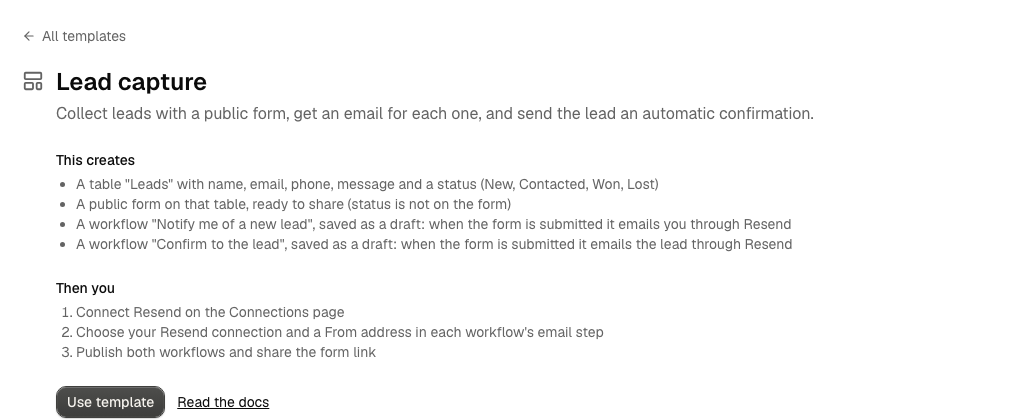
Lead capture is the first automation most businesses want: someone fills in a form on your site, you hear about it straight away, and they get a reply without you lifting a finger. In Alur it is a form, a table, and two workflows that start from a Form Trigger and send email through Resend.
Set it up in a few minutes
- Open Resources → Templates, pick Lead capture and click Use template. Alur creates the Leads table, a Contact us form on it and two draft workflows. See Templates.
- Connect Resend on the Connections page.
- Open each workflow, click the Send email step, choose your Resend connection and a From address on a domain you verified in Resend, then save. The Notify me email goes to your account's email address; change it in the same step.
- Publish both workflows.
- Copy the form's link from the setup screen (or from the table's ⋯ menu, under Forms) and put it on your website, in a message or on a profile.
Nothing is sent until you publish the workflows.
What happens when someone submits
- The visitor fills in the form and sees "Thanks, your response was recorded."
- A new row appears in Leads, with Status empty. Set it to New, Contacted, Won or Lost as you follow up, and use the Board view to move leads along.
- Both workflows start: you get an email with the lead's details, and the lead gets a confirmation at the address they entered.
- Each start is a run you can open to see exactly what was sent and what the visitor entered.
To turn leads into bookings, invoices and repeat visits, see Service business: lead to paid to repeat.
Make it your own
- Change the wording. Edit the subject and text in each email step. Use
values from the form, like
{{ trigger.row.name }}or{{ trigger.row.message }}(see the Form trigger). - Add or remove fields. On the form, use + Input to add one of the
table's columns or a New column…, or Remove from form to take one off. Its value is available as
{{ trigger.row.<column> }}. - Add more steps. For example a Condition that only emails you when a Message is filled in, or an HTTP Request to your CRM.
Good to know
- Each submission can send two emails (one to you, one to the lead), and more if you add workflows. Forms accept at most 30 submissions a minute and 1,000 a day, but check your Resend plan's limits too.
- If an email can't be sent (for example the From address isn't verified), the response is still saved; the run shows the failure under the workflow's runs, and the lead's row is still in the table. Alur does not retry a run that failed to start.
- A response only starts workflows that are published and turned on. Drafts never run.
- Renaming a column changes its key (Phone number becomes
phone_number), so update the steps that use it. - Forms have no CAPTCHA yet; a hidden spam trap and the submission cap are the only protections.