

Approval step
Pause a run until someone approves or rejects it
The Approval step pauses a run until a person says yes or no. Alur emails them a private link; they open it, read your message, and choose Approve or Reject. The run then continues on the matching path. Use it to get a client's sign-off on a quote, a draft post or an invoice before the workflow sends it on.
The person deciding needs no Alur account. You can also decide yourself from the run's page.
Ask for an approval
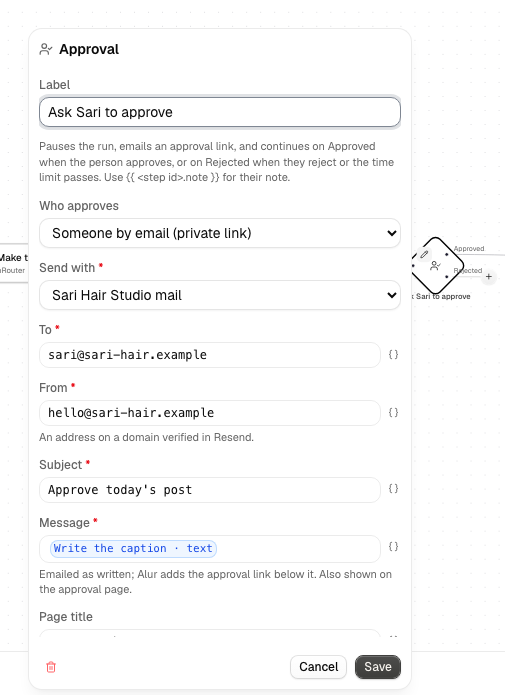
- In the workflow editor, press + and pick Approval.
- Under To, enter the email address of the person who decides.
- Write the Subject and the Message they will see.
- Connect the steps that should run on approval to Approved, and the steps for a rejection or no answer to Rejected.
- Optionally set a Time limit (days) and Password protection.
To review something yourself instead, see Approving it yourself, in Alur.
How it works
Approval has two handles on its right side, like a Condition:
- Approved — the steps that run when the person approves.
- Rejected — the steps that run when the person rejects, or when nobody decides before the time limit.
Every outgoing connection must start from one of these two handles.
When the step runs, it sends one email from Alur's own address, with your name (shown as "Your Name via Alur") as the sender, your email as Reply-To, your subject and message, and the approval link below the message. You don't need an email connection. The run then waits. Its status stays running; on the run's page the step shows Waiting for approval. On the canvas during a test run, the step is amber while it waits for a person and turns green once it is approved or rejected.
| Field | Notes |
|---|---|
| To | The person who decides: one email address. Accepts {{ }} expressions, for example {{ trigger.email }}. |
| Subject | The email's subject: one line, up to 80 characters, with no links. |
| Message | Sent as you wrote it, and shown on the approval page. Up to 5,000 characters, with no links: put links under Links. |
| Page title | Shown at the top of the approval page. Empty uses the subject. |
| Links | Up to 10 labelled web addresses shown on the page, for example a preview or a document. |
| Media file IDs | Up to 10 files from your Media library, one ID per line or separated by commas. Images show as thumbnails; other files are download links. |
| Time limit (days) | Empty means 3 days. From 1 minute (0.0007) up to 30 days. |
| Password protection | Off (the link is enough) or Password. See Password protection. |
Every text field accepts {{ }} expressions, resolved when the step runs.
Using the decision
Later steps can read the step's output:
| Variable | What it is |
|---|---|
{{ <stepId>.decision }} |
approved, rejected, or timeout when nobody decided in time. |
{{ <stepId>.note }} |
The note the person wrote, or empty. Up to 1,000 characters. |
{{ <stepId>.decidedAt }} |
When the decision was made (or when the time limit ran out). |
Approving it yourself, in Alur
Set Who approves to Me, in Alur when you want to review something yourself, for example the text or image an AI step wrote, before the run goes on. Nothing is emailed, so the To, Subject and password fields disappear.
- Put what you want to review in Message, for example
{{ <aiStepId>.text }}. Links and Media files work as usual. - The run waits and shows as Waiting on the Approvals page, with a Review link. Open it, read the message, links and files, add an optional note, and choose Approve or Reject. The run continues on that path, and the time limit works the same way.
- There is no public link: nobody else can decide, and the address you would copy for an emailed approval doesn't exist.
- If you leave Page title empty, the first line of the message is used.
The approval page
The link opens a page with your title, your message, the links and the files, a box for an optional note, and Approve and Reject buttons.
- Each link opens in a new tab, and its site's address is shown beside the label so the person can see where it goes.
- Only one decision counts. A second click, a second person or a reload after deciding shows the result that was recorded, without buttons.
- Once decided, expired or cancelled, the link only shows the result.
- The page is in Indonesian when the person's browser prefers Indonesian, and in English otherwise. The email is sent exactly as you wrote it.
- Anyone who has the link can decide (unless a password protects it), so share it only with the person who should decide.
Deciding from the run page
On the run's page you see, while the step waits:
- the approval link, with a Copy link button, in case the email didn't arrive;
- the deadline;
- whether a password protects the page, how many wrong passwords were tried, and until when the page is locked (the password itself is never shown);
- Approve and Reject buttons, with an optional note. You are signed in as the owner, so no password is needed.
Only you can see or decide your own approvals.
Approval history
Approvals in the sidebar lists every approval your workflows have asked for, newest first, across all workflows. Each row shows the request's title (and the note, if the person left one), the workflow, the status, when it was requested, and when it was decided, or when it is due if it is still waiting.
- Statuses are Waiting, Approved, Rejected, Expired (nobody decided in time) and Cancelled (the step or run failed first). A decided row also says whether it was decided from the app or with the link.
- Use the filters above the table to see only one status.
- Click a request to open its run, where you can copy the link or decide a waiting approval.
- The list shows your latest 200. The link and password details are not shown here, only on the run's page.
Password protection
With Password, the page shows only the title and a password box until the
right password is entered. The password is a field like the others, so each
client can have their own, for example {{ <databaseStepId>.row.password }}
from a Database step that found the
client's row. Send it by a different route than the link, for example by chat.
- A correct password opens the page for 1 hour in that browser.
- Five wrong passwords lock the page for 15 minutes. During the lock even the right password is refused. A wrong and an empty password give the same message.
- An empty password (for example an empty Table cell) fails the step. Alur never falls back to an open page.
- Alur stores only a scrambled form (a hash) of the password and leaves it out of the step's recorded input.
- Limit: a password typed directly into the field stays in the workflow
draft and in the run's copy of the workflow, which you can see. Use a
{{ }}reference to a Table cell to keep it out.
Time limit
If nobody decides before the time limit, the run continues on Rejected
with decision timeout, and the link only shows that the request expired.
Alur never approves on its own.
Errors
These fail the step with a message on the run's page, without retrying:
- a time limit that isn't a number from 1 minute to 30 days;
- a link that isn't
httporhttps, contains a user name or password, is empty, or more than 10 links; - a Media file ID that isn't a file in your own library;
- password protection with an empty password;
- a To that isn't exactly one email address, or a subject or message that contains a link;
- an address that asked not to receive approval emails from Alur;
- a sending limit, or approval email being paused for your account.
If the step or the run fails while the approval is waiting, the approval stops accepting decisions.
Retries and resumed runs
If the run resumes or the step is retried after the email was sent, Alur reuses the same link and does not email again, so the email is not sent twice and the link keeps working. If the mail service is briefly unavailable, the step is retried.
Sending limits
Approval emails go out from Alur's address, so Alur protects that address from misuse:
- Up to 20 approval emails a day per account, up to 3 a day to the same address, and up to 5 a day to addresses you haven't emailed before.
- Every email ends with Not expecting this?. A person who uses it is never emailed an approval by Alur again, from any account. If several people report your emails within a week, approval email is paused for your account until you contact support.
Limits
- Main path only. An Approval can't be inside a For each loop body. The editor won't save the workflow until it's moved.
- One person's decision: two outcomes, no reminders, no extending the deadline, and a decision can't be changed afterwards.