

Views
See the same table rows as a Table, a Board or a Calendar
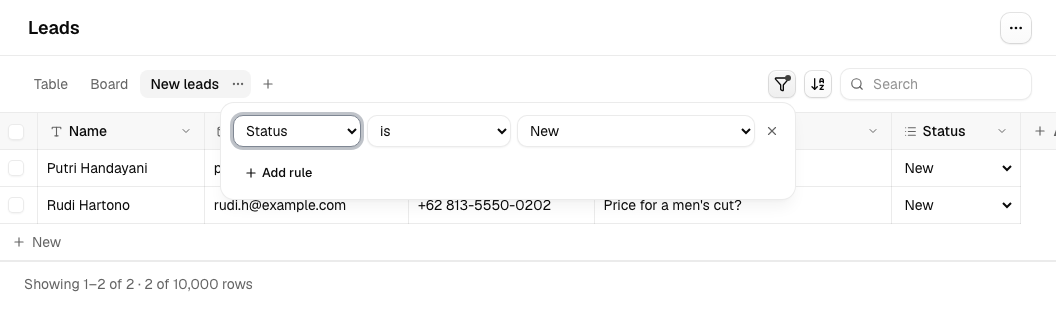
A table's rows can be shown as a Table, a Board or a Calendar. The layout belongs to a view: each view is a tab under the table's name (Saved views), and its ⋯ menu changes its layout. Table is the grid described on the Database page.
The settings below are kept in the page address, so refreshing or going Back keeps them and the link opens the same view.
Create a view
- Open a table and click + next to its view tabs.
- Give the view a name and pick Table, Board or Calendar.
Every table starts with one view named Table. Each view keeps its own filters, sort, Group by and Date field, so "Open leads" as a Board and "All leads" as a Table can sit side by side.
Change, rename or delete a view
- Open the tab's ⋯ menu.
- Change its layout (Table, Board or Calendar), or choose rename, duplicate, move or delete.
See Saved views for the rules.
Move cards on a Board
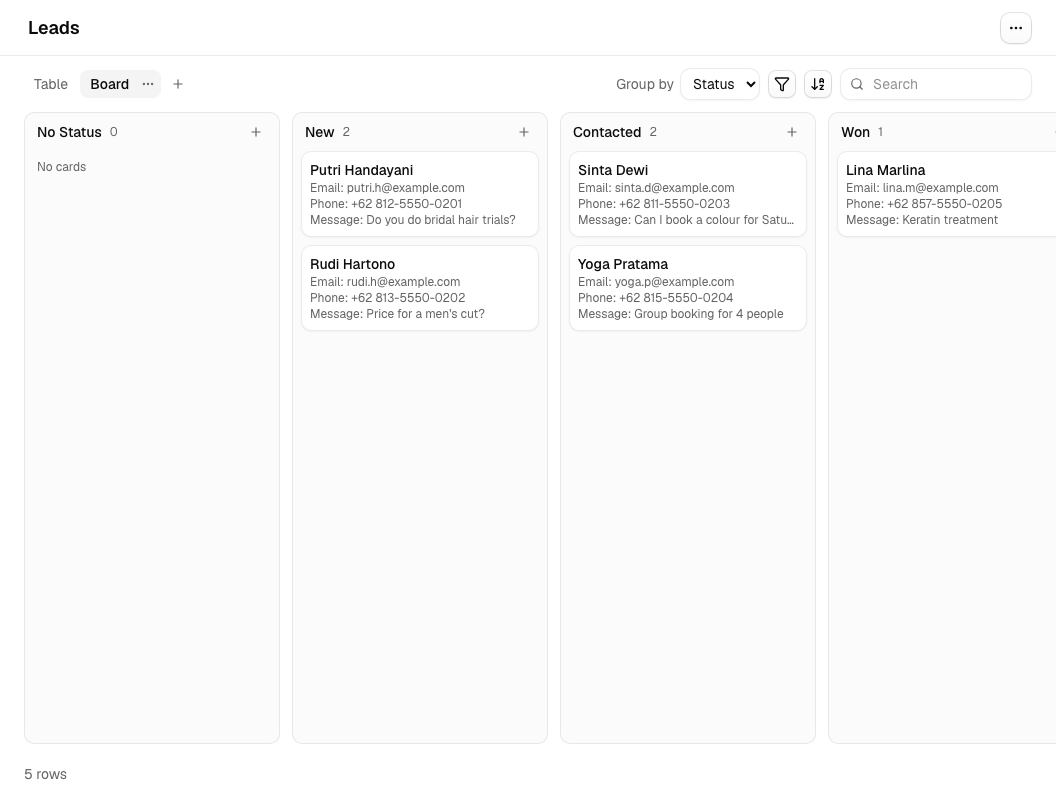
- Open a Board view. If the table has no Select column, the Board asks you to add one.
- Drag a card to another lane to change that cell. Dropping it on the "No" lane empties it.
- To add a card, click + on a lane and type its details in the window that opens.
- To edit or delete one, click the card. Choose Delete row, then Confirm delete.
Plan rows on a Calendar
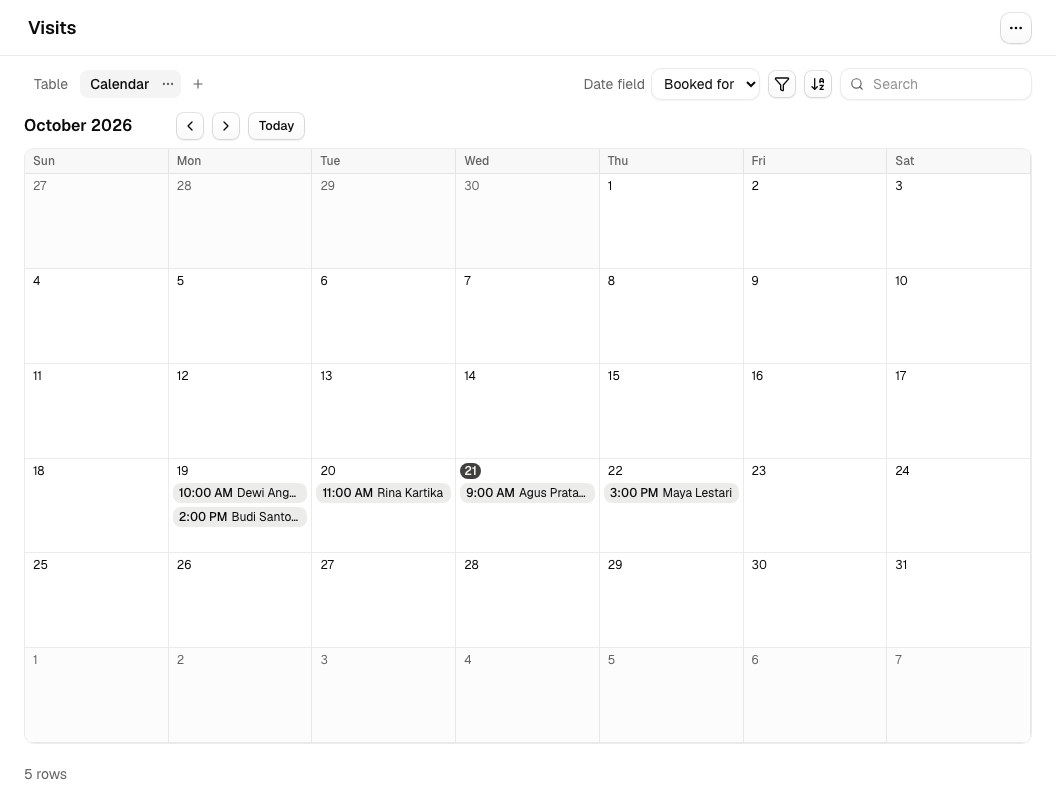
- Open a Calendar view. If the table has no Date or Date and time column, the Calendar asks you to add one.
- Use the arrows to move between months and Today to come back.
- Drag a row to another day to change its date.
- To add a row, hover a day, click +, and fill in its details.
- To edit or delete one, click the row.
Filter rows
- Click Filter > Add rule.
- Pick a column, how to compare, and a value.
- To save it with the view, click Save view in the bar that appears.
Rules apply as you edit them. See Filter rules for the options.
Sort rows
- Click Sort.
- Pick a column and ascending or descending.
Rows with no value come last. Long text, Media and Relation columns can't be sorted.
Save a view's settings
- Change filters, sort, Group by or Date field.
- Click Save view in the bar that appears, or Reset to go back to the saved view.
About Board and Calendar
Board. The board makes one lane per choice of a Select column, with a No column lane first for rows that have no choice. Each row is a card showing its Name and up to three other filled-in cells. The board groups by the first Select column in the table; pick another one in Group by.
Calendar. The calendar shows one month at a time, Sunday first, with each row on the day in a Date column. It uses the first Date column in the table; pick another in Date field. Rows with no date aren't shown; the number of them is noted above the calendar.
A Date and time column also works here. Each row appears on the day it falls on in your browser's time zone, with its time shown in front of the title, and rows are ordered by time within a day. Because the time of day can't be guessed, dragging a row to another day and the + button are only available for Date columns.
Search works in both views. They show up to 1,000 rows; if more match, a note says so and searching narrows them. Selecting and deleting several rows, paging and Export CSV stay in the Table view (Export CSV is available everywhere).
Saved views
A table can have up to 20 views, shown as tabs above the rows, and always keeps at least one. Deleting a view never deletes rows.
Filters, sort and the other settings take effect at once and stay in the page address, but they are only saved to the view when you click Save view. The search box is never saved. If a filter hides a row you just added, a note says so and offers Clear filters for now.
Export CSV exports the rows of the view you are looking at, with its filters and sort.
Filter rules
Filter, Sort and the Board's Group by or the Calendar's Date field sit on the right of the tabs, in the same row, and always belong to the tab that is open.
| Column | Compare with |
|---|---|
| Text, Long text, Email | contains, is, is not, is empty, is not empty (ignoring upper and lower case) |
| Number | is, is not, <, >, ≤, ≥, is empty, is not empty |
| Checkbox | is checked, is not checked |
| Select | is, is not, is any of, is empty, is not empty |
| Date, Date and time | is, is before, is after, is on or before, is on or after, is empty, is not empty |
| Media, Relation | is empty, is not empty |
For dates, pick Exact date… or a relative value: today, tomorrow, yesterday, this week, next 7 days or last 7 days. Relative values follow today's date in your browser's time zone, so "is before today" stays correct tomorrow. With two or more rules, Match chooses whether All rules or Any rule must hold (up to 10 rules per view).
A rule that refers to a column or Select option you later deleted is flagged (Column deleted, Option deleted) and a deleted column's rule no longer filters. Remove it with the × button.