

Database
Keep your business records in tables you shape yourself
Database & Forms in the sidebar is where you keep structured records — customers, orders, leads, anything you track in rows and columns. You decide the columns, and you can change them at any time. Tables are private to you.
Workflows can add, find, update and delete rows with the Database step. To let people book a time with you, see Scheduling. To let other people add rows without an Alur account, share a form.
Create a table
- Click the + next to Database & Forms in the sidebar.
- Give the table a name.
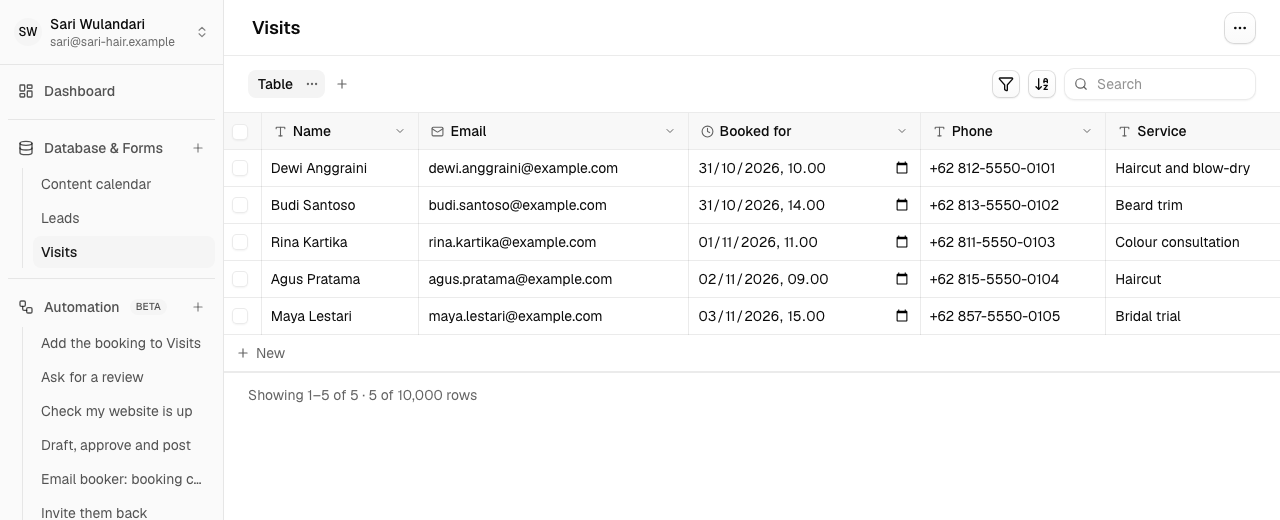
The table opens straight away, with one Name column and no rows. It is listed under Database & Forms in the sidebar, the same way workflows are.
Rename or delete a table
- Open the table from the sidebar.
- To rename it, click the table's name in the top bar and type a new one.
- To delete it, open the ⋯ menu at the top right and choose Delete table, then type the table's name to confirm.
Deleting removes the table and every row in it for good.
Add a column
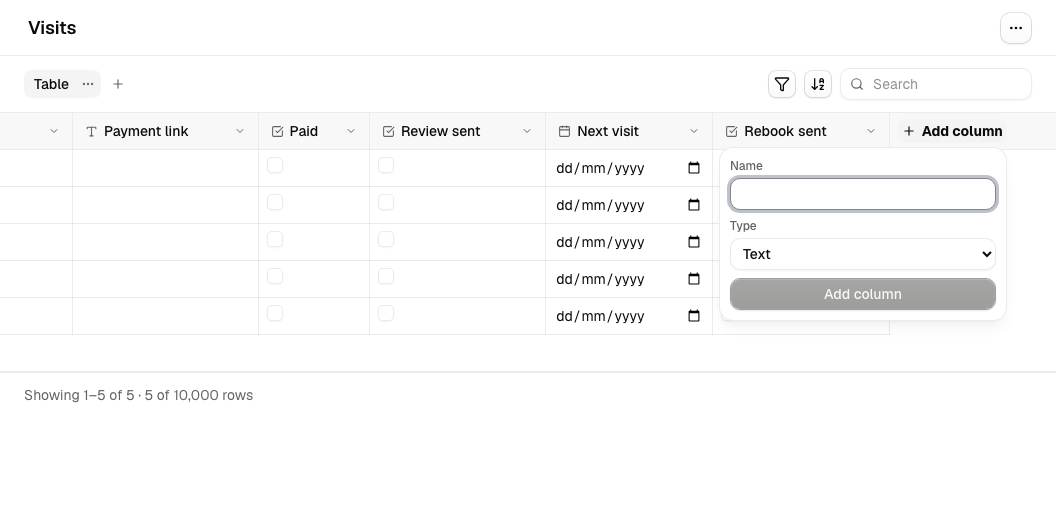
- Click Add column at the end of the header row.
- Choose a name and a type.
- Confirm.
Change or remove a column
- Click the column's name to open its menu.
- Choose Rename, Edit options (Select columns only) or Remove column.
Remove column permanently deletes the column and its values in every row, and Alur asks you to confirm first. See Columns for the rules.
Add and edit rows
- Click New under the table to add an empty row.
- Type into any cell.
- Press Enter or click away to save.
If a value isn't valid for its column — say, letters in a Number column — you'll see a message under the cell and nothing is saved. Press Esc to put the old value back.
Delete rows
- Tick the checkboxes of the rows you want to delete. The box in the header selects every row on the page.
- Open the ⋯ menu and choose Delete N selected rows.
- Confirm.
Selecting covers the current page only, and changing page, search or reloading clears the selection. Deleted rows can't be brought back.
Find rows
- Type in Search at the top of the table.
- To go back, click Clear search.
Export to CSV
- Click Export CSV at the top of the table.
The file downloads and opens in a spreadsheet.
Column types
| Type | Holds |
|---|---|
| Text | Any text, up to 10,000 characters |
| Long text | Several lines of text, such as notes or a message, up to 5,000 characters. Press Enter to save a cell and Shift+Enter for a new line |
| Number | Whole or decimal numbers, such as 42 or -3.5 |
| Checkbox | Yes or no |
| Date | A calendar day, entered as a date |
| Date and time | A moment in time, entered and shown in your browser's time zone |
| An email address, checked for a valid format (up to 254 characters) | |
| Select | One choice from a list you define |
| Media | Up to 10 images from your Media library, in the order you picked them |
| Relation | A link to one row of another table, such as the customer an order belongs to |
Columns
A table can have up to 30 columns, and names can be up to 64 characters. Column names must be different from each other (capitals don't count). The Name column can't be removed.
Edit options (Select columns only) lets you add, rename and remove choices: renaming a choice keeps every cell that uses it, and removing a choice empties the cells that used it.
A column's type can't be changed afterwards. To change one, add a new column of the right type and remove the old one.
Relation columns
Choose Relation and pick the table it links to (you can't change this later). Click a cell, search that table's rows by their first column, and pick one; Clear removes the link. The cell shows that first column's text.
Deleting a row that other rows link to asks you to confirm and says how many rows
link to it. Those rows are kept, but their link is emptied. A table that another
table's Relation column links to can't be deleted until that column is removed.
Export CSV writes the linked row's text. In a workflow, a Database step sets or
matches a Relation field by the linked row's ID ({{ step.row.customer }} gives
that ID). A Relation column can't be put in a form, and
isn't searched. Board cards show the linked row's text.
Media columns
Click a Media cell, then choose images from your Media library (or upload new ones) and click Done; the choice is saved when the picker closes. The cell shows the first image with +N for the rest, and the same on Board cards. Only your own images can be used.
If you later delete an image from the Media library, it stays in the cell and is
shown as File missing — nothing is cleared for you. Export CSV writes the
file names separated by ; , with (missing file) for deleted ones. You can't
match rows on a Media column in a workflow.
Rows and the table layout
The table spans the full width of the window. Each column is as wide as its contents need, up to a maximum, with any spare room after the last column, and the table scrolls sideways when there are many columns. Rows are numbered, each with a checkbox in the first column. A table can hold up to 10,000 rows.
Besides the Table grid, the same rows can be shown as a Board or a Calendar. See Views.
Search and pages
Search matches any part of the text in Text columns and the choice names in
Select columns, ignoring capitals, and always starts from the first page. Email
and Long text columns are searched like Text. Number, Date, Date and time and
Checkbox columns aren't searched. Characters like % and _ are searched as
plain text. If nothing matches you'll see "No rows match …" with a Clear
search link.
Tables show 25 rows per page, in the order they were added, with "Showing 26–50 of 83" below and Previous and Next when there's more than one page. The page and your search are in the address, so refreshing or going Back keeps your place.
CSV export
Export CSV downloads the table's rows (only the matching ones if a search is
active). The first line holds the column names, and Select cells export the
choice's name. Text that a spreadsheet might treat as a formula, such as one
starting with =, is prefixed with ' so it stays plain text.
Limits
| Limit | Value |
|---|---|
| Tables | 20 |
| Columns per table | 30 |
| Rows per table | 10,000 |
| Name length | 64 characters |
| Options per Select column | 50 |
| Text in one cell | 10,000 characters |
| Long text in one cell | 5,000 characters |
When an action would go over a limit, Alur tells you which one and changes nothing. Deleting is permanent: there is no undo or trash yet.