

Video calls
Give every booking its own video call, joined from the browser
A link can give each booking its own Alur video call. The booker gets a call link with their booking; you join from the scheduling table. Nobody needs an Alur account, Google, or an app: the call runs in the browser on a phone or a computer.
Turn on video calls for a link
- Open the link's editor (Scheduling → Manage links, then the link).
- Under Video call, choose Alur video call. It saves at once.
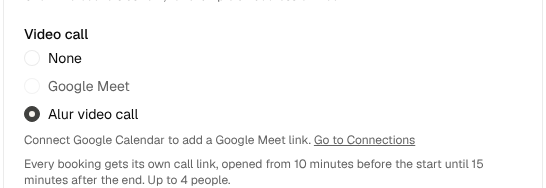
Every new booking on that link gets a call link. Bookings made before you switched it on don't get one. A link has one video call choice: None, Google Meet (see Scheduling) or Alur video call. Links start at None.
Where the booker finds the link
The call link, labelled Video call, is on the booking confirmation screen,
in the confirmation and rescheduled emails, on the booker's manage page and in
the calendar file (.ics). It is separate from the manage link: someone who
has only the call link can join the call but can't cancel or move the booking.
For a booking you added by hand, open its call (below) and copy the Guest link to send it.
Join as the host
- Open Scheduling.
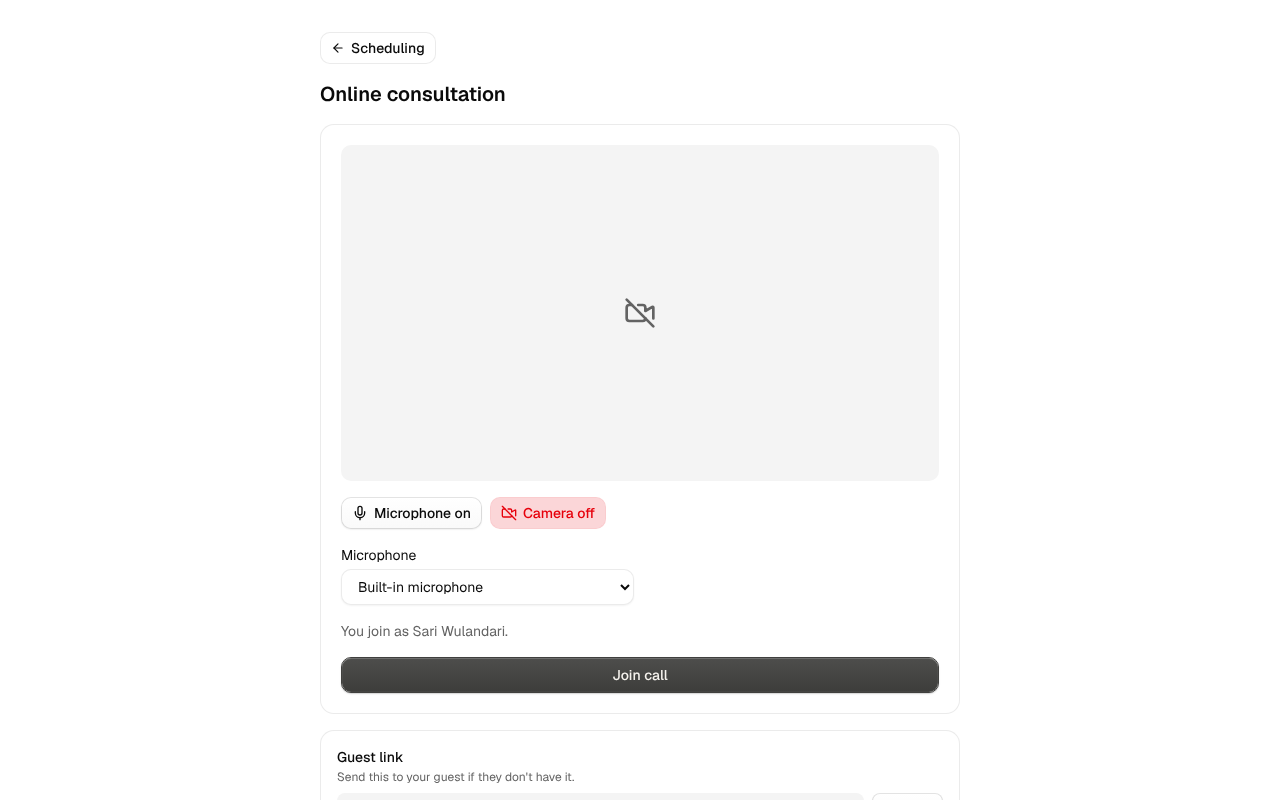
- When a booking's call is open, its row shows Join call. Click it.
- Check your camera and microphone, then click Join call.
When a call is open
- A call opens 10 minutes before the booked start.
- It ends 15 minutes after the booked end, for everyone. The last 10 minutes show a countdown.
- Before it opens, the call link says when it will open, and opens it by itself.
- Cancelling a booking ends its call. Rescheduling moves the call to the new time; the link stays the same.
Who can join
- You, plus up to three guest browsers. A fourth sees "This call is full". A guest who reloads or rejoins from the same browser keeps their place.
- Anyone who has the call link can join while the call is open, so share it only with the people you expect. Guests can join before you; they see "Waiting for your name to join".
- Guests type the name the others see. It starts as the booking's name.
In the call
Each person has a tile with their name. Use the buttons to turn your microphone and camera on or off, and Leave to leave. If the browser blocks sound, a Turn on sound button appears. Chat, screen sharing and recording are not available.
If the browser blocks the camera or microphone, the screen before joining says which one; allow it in the browser's site settings, or join without it.
Privacy
Calls run on Cloudflare RealtimeKit. Audio and video pass through Cloudflare while the call is live, with the name each person typed and an anonymous ID. Email addresses are not sent, and calls are not recorded or stored. See the Privacy Policy.
In workflows
The Scheduling trigger and the Scheduling step give each booking's call link as
callUrl (the Alur video call, else the Google Meet link, else empty), so a
reminder email can include it. See Triggers.
If video calls are unavailable
Alur video call appears only when video calls are available on Alur. If they are switched off, call links say "Video calls are unavailable right now" and new bookings get no call link.