

Canvas
The visual editor for building, saving and publishing workflows
The canvas is the workflow editor. Every workflow opens here: the trigger at the start, the steps you add after it, and lines showing their order.
Saving only writes the workflow's draft. Nothing changes in the live version until you publish, so you can build and test freely.
Create a workflow
- Click the + next to Automation in the sidebar.
- Pick what should start it: on demand, a webhook, or a schedule. The triggers are listed in Triggers.
- Give it a name.
The canvas opens with that trigger already placed.
Add and connect steps
- Click the + on a step's handle and pick the next step.
- Arrange and connect steps in the order you want them to run.
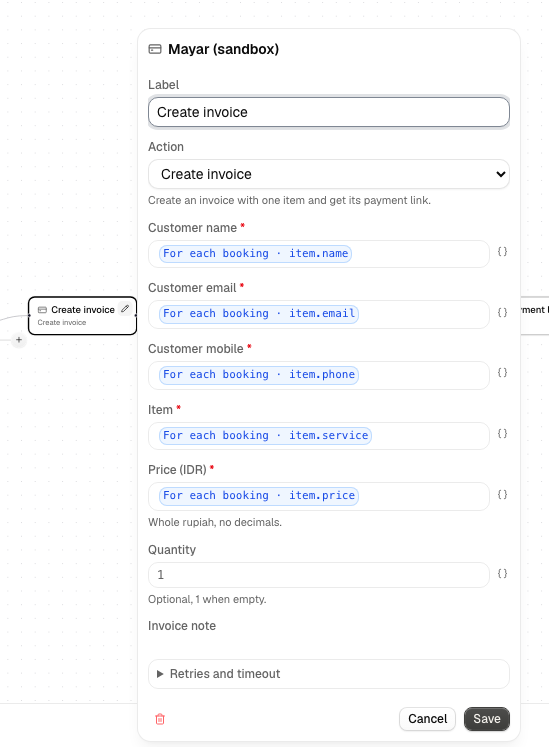
- Click a step to edit it in its config panel.
See Steps for what each type does and what its fields expect.
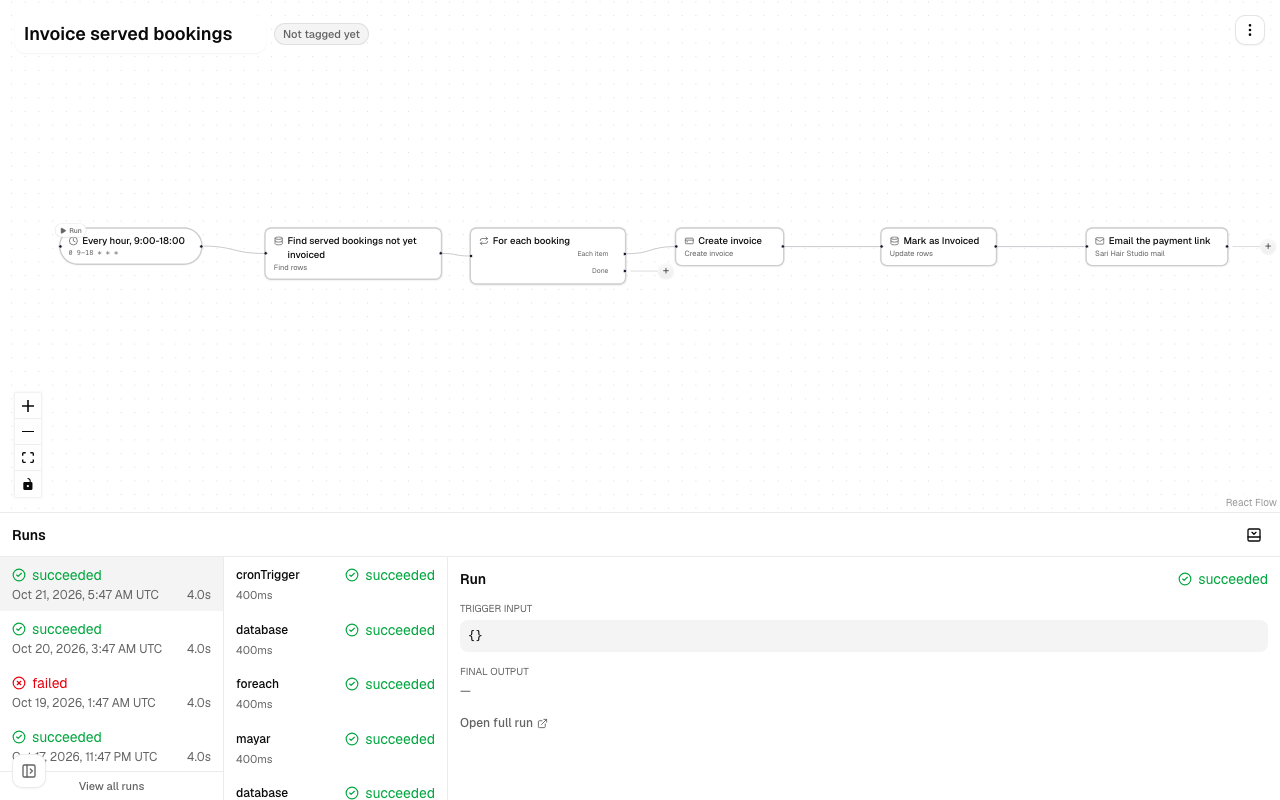
A Condition step branches through its true and false handles; a For each step
repeats the steps connected to it (For each).
Switch to another trigger
- Delete the trigger step: select it and press Delete, or use the delete button in its config panel.
- On the step that nothing leads into, click the + on its left handle.
- Pick any trigger. It is added in front of that step, already connected.
Save your draft
Save as often as you like while building. Saving only writes the draft.
Test a workflow
- Click Test run on the trigger step.
- Watch the Run panel at the bottom of the canvas: it opens on that run and shows each step's status live.
Test runs are recorded like any other run but flagged as tests, and don't count toward your usage numbers. See Runs.
Publish
- Open the Workflow actions menu on the canvas (top right).
- Click Tag Current.
This copies your draft to the workflow's published version, the one live
triggers (webhook, schedule) actually run. Your draft can keep changing afterwards
without affecting anything already live. The same menu lists the versions you've
published (v<n>, with a live marker on the current one), so you can see what
was published and when. A version can only be published with a trigger step, and a
workflow must be published at least once before a webhook trigger can run it.
Reset to an earlier version
- In the version list, click Reset next to an earlier version.
- Confirm.
Its steps replace your draft on the canvas and are published again as a new version: resetting to v1 while v2 is live makes v3, a copy of v1. The older versions stay in the list unchanged, and past runs keep the steps they ran with. Anything on the canvas you hadn't tagged is discarded. The live version has no Reset. If an old version no longer passes today's checks, the reset is refused with the reason.
Pause a workflow
- Publish the workflow at least once.
- Open the Workflow actions menu and choose Pause workflow.
- To start it again, choose Resume workflow.
While paused, a Paused pill shows next to the version, and nothing live starts it: its webhook URL answers 404, its schedule doesn't fire, forms, bookings and payments don't start it, and a Call Workflow step that targets it fails. Runs already in progress finish normally, and Test run still runs your draft. Events that arrive while paused are not replayed later.
Tagging a new version or resetting to an earlier one doesn't change whether the workflow is paused.
Expressions
Any field can reference a previous step's output with an expression:
{{ httpStep.body.userId }}
<stepId>.<path> walks into that step's JSON output. This is flat — there's no
per-item array pairing, so if a step returns a list you address a specific item or
field, not "for each." The variable picker on each field lists the values
available: the trigger and the steps a path leads from into this one.
One value needs no earlier step: {{ system.today }} is the date the run started,
written YYYY-MM-DD. For a workflow with a Cron trigger it uses that trigger's
timezone; for other workflows it is the date in UTC. It stays the same for the
whole run, even if a step is retried after midnight. The variable picker lists it
under System as "Today's date". {{ system.tomorrow }} is the day after it, in
the same time zone ("Tomorrow's date").
Parallel branches
Connect more than one step to the same handle and each one starts its own branch. Branches run at the same time: a branch with a slow step (a long Delay, an Approval waiting for someone) doesn't hold up the others. A step starts as soon as every step connected into it has finished.
-
Where branches meet. A step connected from several branches waits until all of them have finished or been skipped, then runs once. Open the step's config panel to choose When paths meet here:
- Run if any path reaches this step (the default): it runs if at least one of the connected paths was taken.
- Run only if every path reaches it: it is skipped when a Condition or Approval sent any of those paths the other way. The run shows it as skipped, "not every incoming path was taken".
The setting appears only on a step with two or more connections into it.
-
Reading values. A step can use the output of the steps a path leads from into it — the ones the variable picker lists. It can't read a step on a branch beside it, since that step may still be running.
-
When a step fails. The run fails with that step's error as soon as it happens. No new step starts; a step already running on another branch finishes, and its result is still recorded on the run.
-
Order inside a branch. Steps in one branch still run one after the other. Inside a For each, items still run one at a time; branches inside the repeated steps run at the same time for each item.
-
Limit. At most 10 steps of one run work at the same time; the rest start as places free up. Waiting (a Delay, an Approval, an AI job) doesn't count toward it.
Retries and timeout
Most steps have a collapsed Retries and timeout section in their config panel (HTTP Request, API call, Condition, Call workflow, Zernio, Resend, Mayar, AI text, AI image, Posting and Database; not triggers, Delay, Approval, AI video or For each):
- Retry attempts: how many times to retry after a temporary failure, from 0 to 10000. 0 turns retries off. Default 3.
- Wait between retries: milliseconds, or a duration such as
10 seconds. Default 10 seconds. - Backoff: Constant, Linear or Exponential (default) growth of the wait.
- Timeout: fail the step if it takes longer, in milliseconds or a duration
such as
5 minutes. Empty means no timeout.
Durations use whole numbers and the units second, minute, hour, day, week, month
or year (for example 2 hours); 5m is not accepted here. A permanent failure,
such as a bad setting or a rejected request, is never retried.