

Forms
Let anyone add a row to one of your tables from a public page you arrange with text and inputs
A form is a public web page that adds a row to one of your tables. Share its link with customers, guests or teammates: they don't need an Alur account, and they only ever see the form, never your table.
Each submission becomes one new row, and you see the rows in the table's usual Table, Board and Calendar views. A table can have as many forms as you like, each with its own title and set of fields.
Create a form
- Open a table from Database & Forms in the sidebar.
- Click the ⋯ menu at the top right.
- In the Forms section, click Add form.
The form is live straight away, titled with the table's name, with every column filled in by visitors except Media columns. Click a form in the Forms section at any time to edit it.
Edit a form
- In the Forms section of the ⋯ menu, click the form's title.
- On the left, set the Form title, Accepting responses and the message visitors see After submitting.
- On the right, under Content, arrange the blocks visitors see.
- Click Save changes.
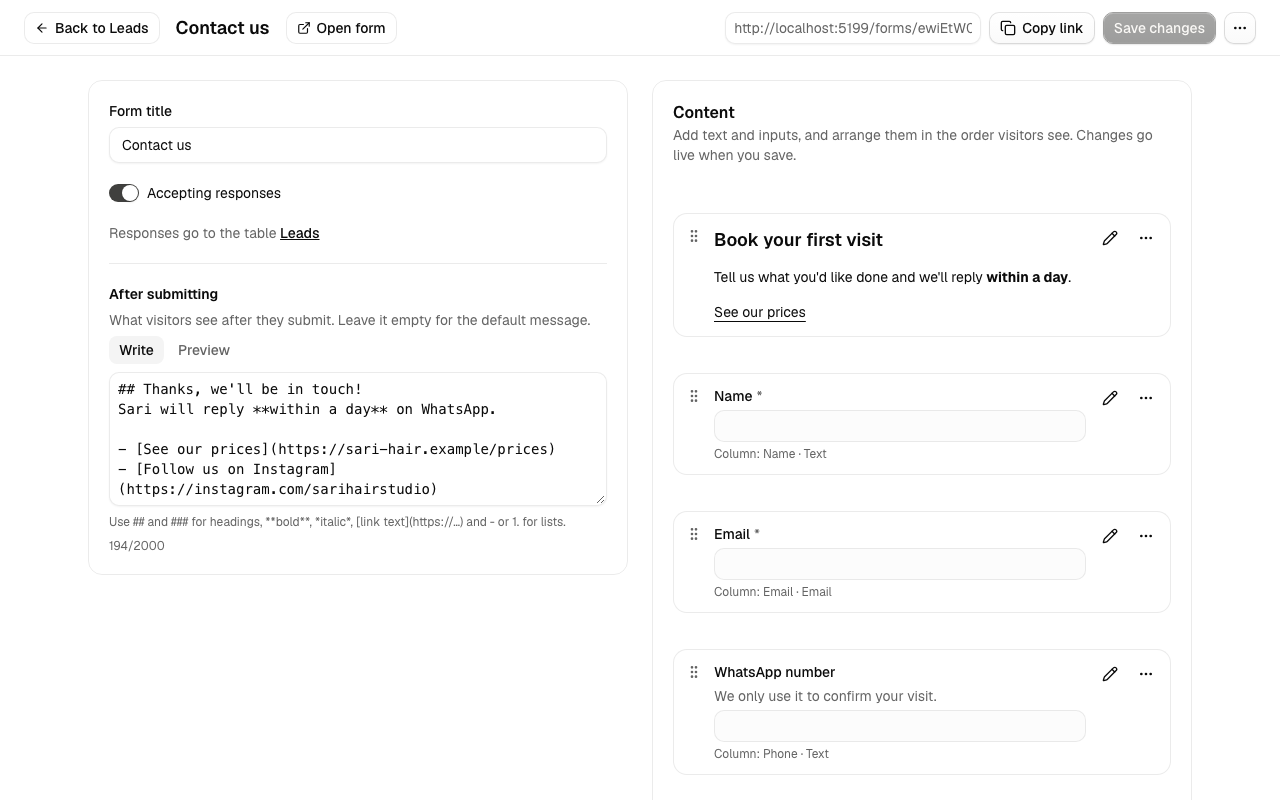
Your changes are a draft until you click Save changes: the public form doesn't change until then, and the page asks before you leave with unsaved changes. Accepting responses is the exception and applies straight away.
Add text and inputs
- Click + Input or + Text below the last block, or hover between two blocks to add one in that place.
- For an input, choose a column from the list. For text, write in Write and check it in Preview.
+ Input lists the table's columns that aren't on the form yet. New column… adds a column to the table straight away (Text, Long text, Number, Checkbox, Date or Email; Select columns are added in the table, where you set their options) and puts its input on the form.
Edit a block
- Click a block, or its pencil button.
- Change its settings.
For an input, Label replaces the column name on the form; leave it empty to use the column name, which then follows any rename. Help text appears under the label, for example "We only use this to confirm your visit". Required means visitors can't submit until the field has a value; a required Checkbox must be ticked, which suits an "I agree" box.
A text block is a short piece of formatted text, up to 2,000 characters. See Formatting text.
Write the thank-you message
- Open the form's edit page.
- Under After submitting, write the Thank-you message.
- Click Save changes.
Use it for next steps, how you'll contact them, or links to your prices or social pages. Leave it empty to show the default "Thanks, your response was recorded."

Arrange and remove blocks
- To move a block, drag it by its handle (⠿), or use Move up and Move down in its ⋯ menu.
- To remove it, open its ⋯ menu and choose Remove from form (an input) or Delete (a text block).
- Click Save changes.
The form keeps its own order: moving a block doesn't change the table's column order, and the table's column order doesn't change the form. Remove from form takes an input off the form; the column and its data stay in the table.
Share a form
- Open the form's edit page.
- Copy the Public link, which looks like
/forms/…followed by a long random code. - Share it. Anyone with the link can submit.
Close, reopen or delete a form
- Open the form's edit page.
- Untick Accepting responses to close the form, or tick it again to reopen. To remove the form, choose Delete form.
A closed form shows "This form is closed" and nothing is added. A form with no inputs left also shows as closed, even if it has text. Delete form makes the link stop working; rows already added stay in the table.
Formatting text
Text blocks and the thank-you message use the same formatting, up to 2,000 characters:
| Write | Visitors see |
|---|---|
## Heading |
A heading |
### Smaller heading |
A smaller heading |
**bold** and *italic* |
bold and italic |
- item or 1. item on their own lines |
A bulleted or numbered list |
[our prices](https://example.com/prices) |
A link that opens in a new tab |
A new line starts a new line; an empty line starts a new paragraph. Links work
only for https://, http:// and mailto: addresses. Anything else, such as
images, tables or HTML, shows as plain text.
Inputs and limits
A form can have up to 20 text blocks; labels can be up to 120 characters and help text up to 300. Media columns can't be put in a form, because visitors can't upload files, and Date and time columns can't either, because a form can't know the visitor's time zone. Relation columns can't either, because visitors can't see your other tables' rows.
| Column type | What the visitor sees |
|---|---|
| Text | A text box |
| Long text | A multi-line text box |
| Number | A text box that accepts 42 or -3.5 |
| Checkbox | A tick box |
| Date | A date picker |
| A text box that checks for a valid email address | |
| Select | A list of your options |
What visitors experience
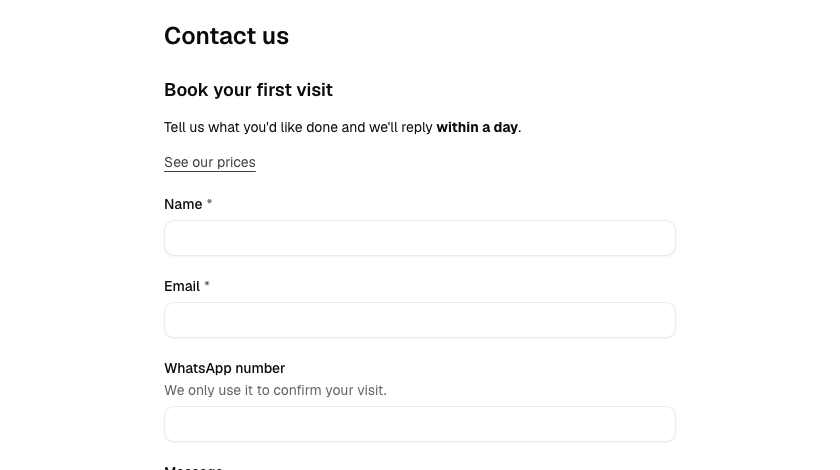
The Submit button stays disabled until something is filled in. After a successful submit they see your thank-you message, followed by a Submit another response link. If a required field is empty or a value doesn't fit its column (for example letters in a Number), the form shows a message beside that field and keeps everything else they typed.
Good to know
- Changes to the table show up in the form straight away: a deleted column's input disappears from it, and a renamed column gets its new label unless the input has its own label. Deleting the table deletes its forms.
- A response goes into the table like any row, so the table's row limit (10,000) applies. When the table is full the form says it can't accept responses right now.
- To keep spam out, each form accepts at most 30 submissions a minute and 1,000 a day, and a submission from a page that has been open for more than about two hours asks the visitor to reload the page.
- A response can start a workflow, for example to email you and the visitor: add a Form Trigger step and pick the form (see Triggers), or start from the Lead capture template. Nothing is emailed unless a published workflow does it.