

Resend
Send email from your own domain in a workflow
Resend sends email from a domain you have verified with them. Connect your Resend account once in Alur, then add a Send Email step to send email from any workflow.
Connect Resend
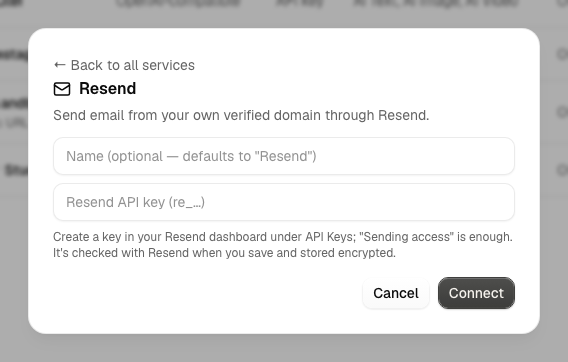
- In your Resend dashboard, verify the domain you want to send from, then
create an API key under API Keys. It starts with
re_. A key with Sending access is enough. - In Alur, open Connections → Add connection, choose the Resend tab, and enter a name and the key.
- Alur checks the key with Resend before saving it. If Resend rejects it, you'll see the reason and nothing is saved. The key is encrypted at rest and never shown again.
Rotate a key or disconnect
- Open Connections and find the connection.
- Choose Update key to rotate the key, or Disconnect to remove it.
Steps keep working after Update key, because they point at the connection and not at the key. Disconnect removes the connection; any Send Email step still using it fails at run time until you pick another connection in it.
Sending email
In the workflow editor, press +, pick Send Email (under Email) and choose this connection in the step. The fields, output and failure handling are on the Send Email page.