
Triggers
Manual, Webhook, Cron, Scheduling, Form, and Payment — how a workflow starts running
A trigger is how a workflow starts running. A workflow has exactly one trigger, chosen when you create it. A version can only be published with a trigger step. Live triggers follow the published version: a webhook URL or schedule only runs while the published version has that trigger step.
Choose or change a trigger
- To choose one, click the + next to Automation in the sidebar and pick what should start the workflow.
- To switch, delete the trigger step.
- Add another from the + on the left handle of the first step (Canvas).
The sections below describe each trigger.
Manual
Fires when you click Test run / Run in the dashboard.
Webhook
Runs the workflow's published version whenever its webhook URL receives a request. Opening a Webhook Trigger step's editor generates that URL (the first time you open it) and shows it to copy into whatever should call it. If the published version has no Webhook Trigger step, the URL answers 404.
Cron
Runs the workflow's published version on a schedule you set. The editor's Cron Trigger step lets you pick a preset (e.g. every hour, daily) or enter a custom cron expression, plus a timezone. The schedule that runs is the one on the published version's Cron Trigger step, so a change to it takes effect when you publish.
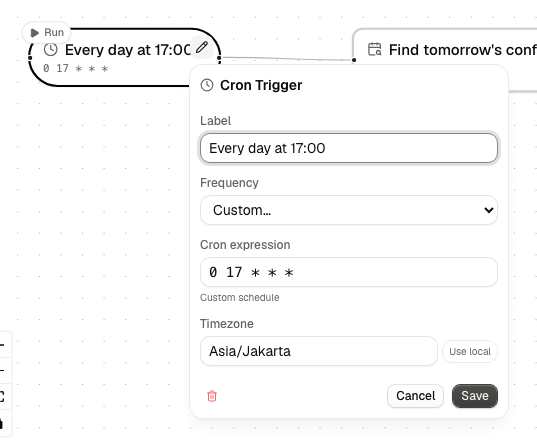
Schedules are checked once a minute, so the shortest gap between two runs is one minute — you won't get a run for anything finer than that, and you won't get duplicate runs either. A workflow that isn't published yet, or that's turned off, is silently skipped — same as Webhook.
Scheduling
Runs the workflow's published version when a booking on one of your links is created, cancelled or rescheduled. In the Scheduling Trigger step choose the link and the event; to react to several events, make one workflow per event. A cancel happens when the booker cancels from their manage link or when you cancel the booking on the scheduling table.
Later steps can use these values, for example {{ trigger.email }}:
| Value | What it is |
|---|---|
event |
created, cancelled or rescheduled |
bookingId |
The booking's id |
pageId, pageTitle |
The link |
name, email, note |
What the booker entered |
start, end |
The booking time, as UTC (2030-01-15T10:00:00Z) |
previousStart |
The old start (rescheduled only) |
timeZone |
The link's time zone |
location |
The page's location text |
manageUrl |
The booker's cancel/reschedule link |
callUrl |
The booking's video call link: its Alur video call, else its Google Meet link, else empty |
Test run sends a made-up booking so you can try the steps. Like Webhook and Cron, an unpublished or turned-off workflow is skipped. If a workflow can't start, the booking itself still goes through; the failure shows under the workflow's runs. Bookings you add by hand on the scheduling table don't start a workflow.
Form
Runs the workflow's published version each time a visitor submits one of your forms. In the Form Trigger step choose the form (several workflows can listen to the same form, and each one runs). The run starts after the response has been saved to the table, and only for accepted submissions: a closed form, an invalid or forged submission or a spam catch starts nothing.
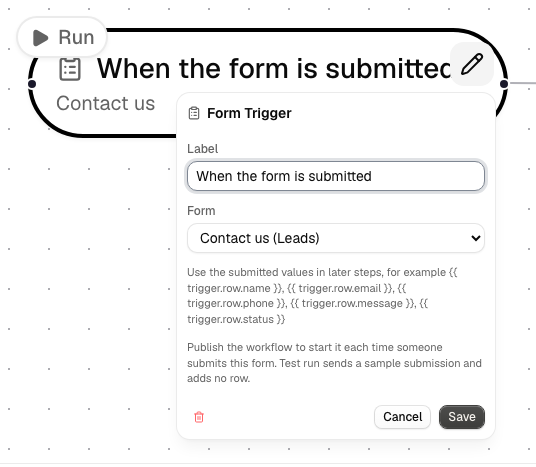
Later steps can use these values, for example {{ trigger.row.email }}:
| Value | What it is |
|---|---|
row.<column> |
What the visitor entered, one value per column of the form's table. <column> is the column name in lowercase with other characters turned into _ (Full name becomes full_name), the same keys the Database step gives its rows. The step's editor lists them for your table. |
row.id, rowId |
The new row's id |
formId, formTitle |
The form |
tableId, tableName |
The form's table |
Columns the form doesn't offer (such as Status) are empty. If you rename a column, its key changes too, so update the steps that use it.
Test run sends a made-up submission shaped like your table, and adds no row. Like the other triggers, an unpublished or turned-off workflow is skipped. If a workflow can't start, the response is still saved and the visitor still sees the thank-you; the failure shows under the workflow's runs. A Database step that adds rows to the form's table does not start the workflow again, so a workflow can't trigger itself. Each response can start several workflows and send several emails, so keep an eye on your email provider's limits.
Payment
Runs the workflow's published version each time Mayar reports a payment on one
of your Mayar connections. In the Payment Trigger step choose
the connection; the step shows the webhook URL to paste in Mayar's dashboard.
Later steps can use {{ trigger.amount }}, {{ trigger.customerEmail }} and
the other values listed in Mayar payments.
The same payment delivered twice starts the workflow once. Test run sends
a made-up payment; nothing is charged.
A run always executes the published version
Whichever way a run is triggered, it executes the workflow's published definition, not the draft — and snapshots that exact graph onto the run so a later edit or republish can never change what an already-recorded run says it ran. See Quickstart.