

Database step
Add, find, update and delete rows in your tables from a workflow
The Database step lets a workflow use your tables: add a row for every new order, look up a customer, mark an order as done, or remove old records.
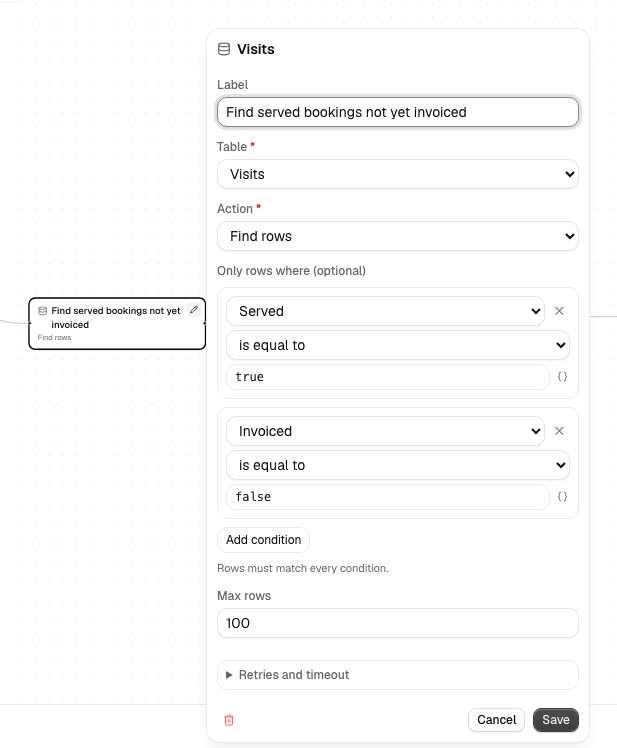
Add a Database step
- In the workflow editor, press +.
- Pick one of your tables under Database. If you have no tables yet, create one first from Database in the sidebar.
- Choose an Action:
| Action | What it does | Output |
|---|---|---|
| Add a row | Adds one row with the fields you fill in | id and row (the new row) |
| Find rows | Returns the rows that match, or all rows | count, row (the first match, or empty) and rows |
| Update rows | Changes the fields you fill in on every matching row | count |
| Delete rows | Permanently deletes every matching row | count |
Every text field accepts {{ <stepId>.<path> }} expressions, like other
steps.
Fields
For Add a row and Update rows, each column of the table has a field.
Blank fields are left empty when adding and left unchanged when updating.
Checkbox and Select columns use a dropdown; Number and Date fields must hold a
number or a date written YYYY-MM-DD. A Date and time field must include a time
zone, for example 2026-10-05T14:30:00Z or 2026-10-05T21:30:00+07:00; it is
stored as the same moment in UTC. An Email field must be a valid address. A Media field takes file IDs separated by
commas, or an expression that gives a list; they must be your own images from
the Media library.
Which rows
Find, Update and Delete pick rows with one or more conditions. Click Add condition, choose a column (or the Row ID) and a value. You can add up to 5 conditions, and a row must match all of them.
| Operator | Available for |
|---|---|
| is equal to | every column type and the Row ID. Text is compared ignoring capitals |
| is before or equal to | Date, Date and time and Number columns |
| is after or equal to | Date, Date and time and Number columns |
For example, to find posts that are ready to go out, use Status is equal to
Scheduled and Publish date is before or equal to {{ system.today }}
(today's date).
Whole days on Date and time columns
A condition on a Date and time column also accepts a plain date,
YYYY-MM-DD, {{ system.today }} or {{ system.tomorrow }}. It then means
that whole day, from its first to its last second, in the workflow's time zone:
| Condition | Matches |
|---|---|
Start is equal to {{ system.tomorrow }} |
any time tomorrow |
Start is before or equal to {{ system.today }} |
anything up to the end of today |
Start is after or equal to {{ system.tomorrow }} |
anything from the start of tomorrow |
The time zone is the one of the workflow's
Cron trigger; workflows without one use UTC,
the same as {{ system.today }}. A value with a time, such as
2026-10-05T14:30:00Z, is still compared as that exact moment. A date that
doesn't exist, such as 2026-02-30, fails the step.
For example, to email everyone who has a visit tomorrow: a Cron trigger
every day at 17:00 in your time zone, a Database step that finds rows of your
table where Date is equal to {{ system.tomorrow }}, then a
For each step that sends each of them an email
with a Send Email step. To read
scheduling bookings, use the
Scheduling step instead.
Find with no condition returns every row, up to Max rows (50 by default, at most 100), oldest first.
Update and Delete always need at least one condition, and the step fails if any
condition's value is empty, for example when an expression found nothing, so a
mistake can never change or delete every row. Find treats an empty value as "no
match": it returns no rows (count 0), never every row. When no row matches,
Update and Delete succeed with count 0, which you can check with a Condition
step.
Steps saved before conditions existed, with a single "is equal to" match, keep working as they were.
Using a row in later steps
A row's fields are named after their columns in lowercase, with other
characters turned into _: a column called Full name is
{{ <stepId>.row.full_name }}. The variable picker lists them for you. The row's
ID is id, and id is also the Row ID you can match on later, to update
the row you just added. A Media column gives the list of its file IDs, which you
can use in the Posting step's Images field.
Failures
The step fails, with a message, when the table was deleted, no action is chosen, there is no field to write or no value to match, a value doesn't fit its column, or the table has reached its row limit. A short database hiccup is retried. An added row is not guaranteed to be added only once if a run is retried after a failure; use Find first if duplicates would matter.